In Pro mode you see your style from the inside: a chain of effects your voice goes through, one after another. This page explains each effect: what it does, when it helps and what each control on its panel changes. The tuner, which always comes first, has its own page: The tuner.
How to handle effects
The basics, in short (the whole screen is covered in The Pro screen):
- Add: tap the NEW FX slot, at the end of the chain, and pick an effect from the list. There’s room for up to 15 effects.
- Open: tap an effect and its panel slides down from the top. To close it, tap the effect again, tap the arrow at the bottom of the panel or swipe the panel up.
- Switch off and on: the switch at the top right of the panel. The effect stays in the chain with its settings, but doesn’t play.
- Change the order: hold an effect until it lifts up and drag it to another slot. The order matters: your voice goes through the effects from left to right and top to bottom.
- Remove: hold the effect and drag it off the chain.
- Adjust: each control is a bar. Drag on it; the value moves from where it was (tapping without dragging doesn’t change it).
In the chain and in the NEW FX list each effect shows up with a short code (for example EQ.4BAND); when you open its panel you see its name and, below it, a line saying what it does.
When you change something by hand, your style is called Custom. If you like how it sounds, save it: Custom presets.
Everything can be automated. Next to each control’s value there’s an automation button: tap it and you draw how that control changes over the song (the echo only on the last word, the filter opening in the chorus…). While a control has a curve, its button lights up and the bar follows the curve, not your finger. See Automation.
In the tables, When added is the value the effect comes with when you add it yourself. The factory styles bring their own settings.
Tone and dynamics
The effects that polish the voice: how much low end and brightness it has, how even it sounds and how much colour you give it.
Equalizer (EQ.4BAND)
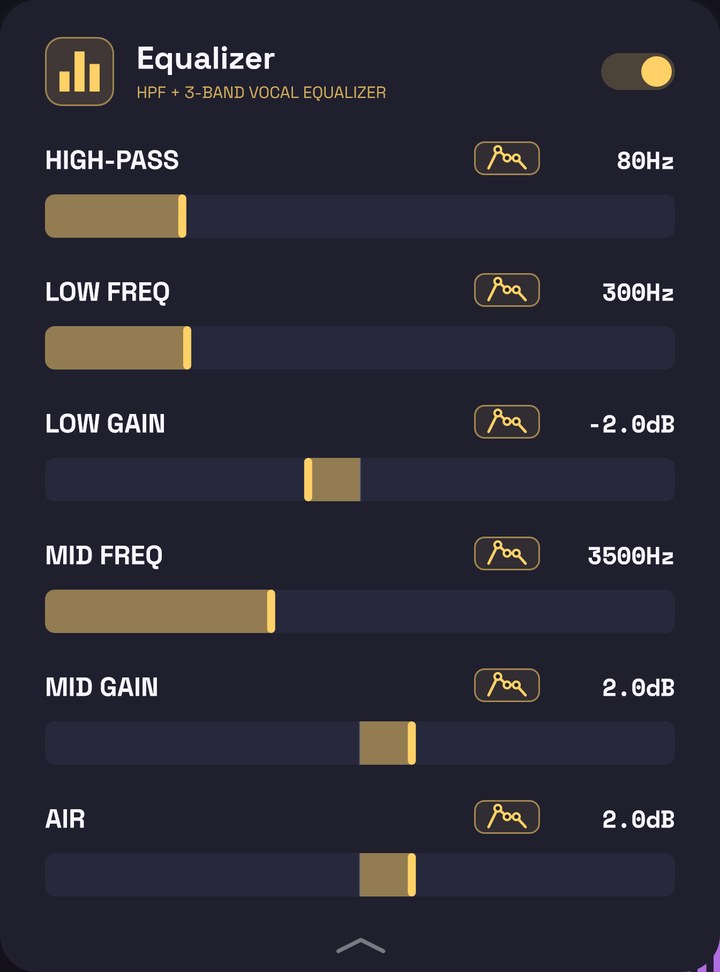
Raises or lowers parts of your voice’s sound: removes the rumble at the bottom, cleans up the “boxy” tone of the low mids, brings the consonants forward and adds air on top.
When to use it: almost always. If your voice sounds dull, raise MID GAIN or AIR; if it sounds like it’s inside a box, lower LOW GAIN; if you hear air pops or hum, raise HIGH-PASS.
| Control | Range | When added | What it does |
|---|---|---|---|
| HIGH-PASS | 20–300 Hz | 80 Hz | Cuts what’s below it: rumble, air pops, hum. At 20 Hz it cuts almost nothing; at 300 Hz the voice gets thin. If VRaptor knows your register, it never cuts above your lowest notes. |
| LOW FREQ | 100–1000 Hz | 300 Hz | Where the low band works. Around 250–400 Hz is the “boxy” tone. |
| LOW GAIN | −12 to +12 dB | −2 dB | Raises or lowers that low band. |
| MID FREQ | 1000–8000 Hz | 3500 Hz | Where the mid band works. Around 3–5 kHz are the consonants and the presence. |
| MID GAIN | −12 to +12 dB | +2 dB | Raises or lowers that mid band. |
| AIR | −12 to +12 dB | +2 dB | Raises or lowers everything above 10 kHz: brightness, air. |
Compressor (COMP.PEAK)
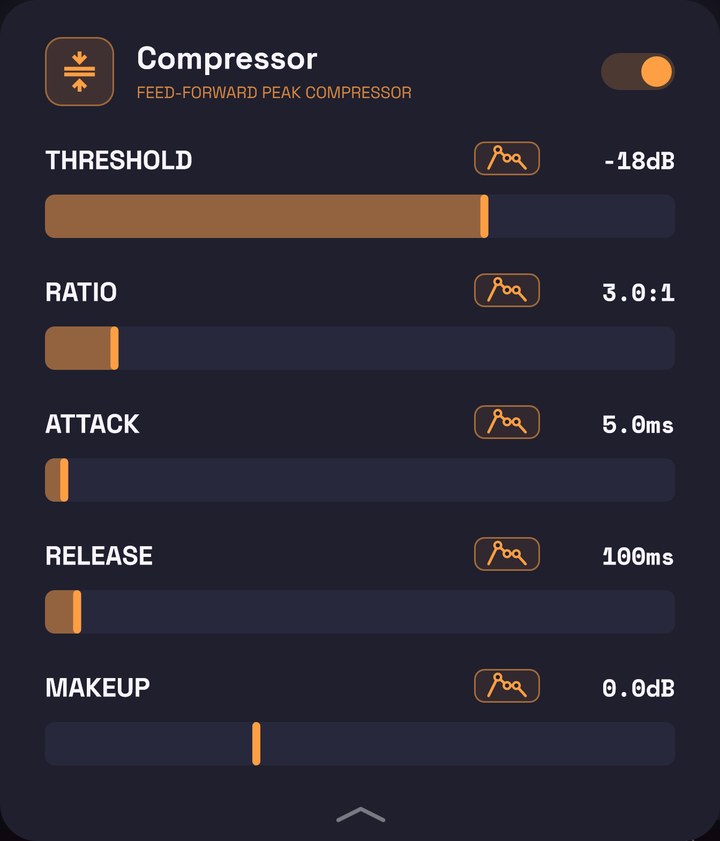
Turns down the loud parts of your voice so everything sounds more even and present, without some words jumping out and others getting lost.
When to use it: when some lines are much louder than others, or you want the voice glued in front of the beat. A RATIO of 3:1 is gentle; from 4:1 to 8:1 it sounds tighter.
| Control | Range | When added | What it does |
|---|---|---|---|
| THRESHOLD | −60 to 0 dB | −18 dB | The level from which it starts turning the voice down. Lower means more compression. |
| RATIO | 1:1 to 20:1 | 3:1 | How much it turns down what goes over the threshold. 1:1 does nothing; 20:1 lets almost nothing through above it. |
| ATTACK | 0.1–200 ms | 5 ms | How fast it reacts. Fast catches the hits; slow lets the start of each word through (more punch). |
| RELEASE | 10–2000 ms | 100 ms | How fast it lets go afterwards. Long is smoother; short follows the phrasing better. |
| MAKEUP | −12 to +24 dB | 0 dB | Raises (or lowers) the volume after compressing, to win back what was turned down. |
De-esser (DEES.SPLIT)
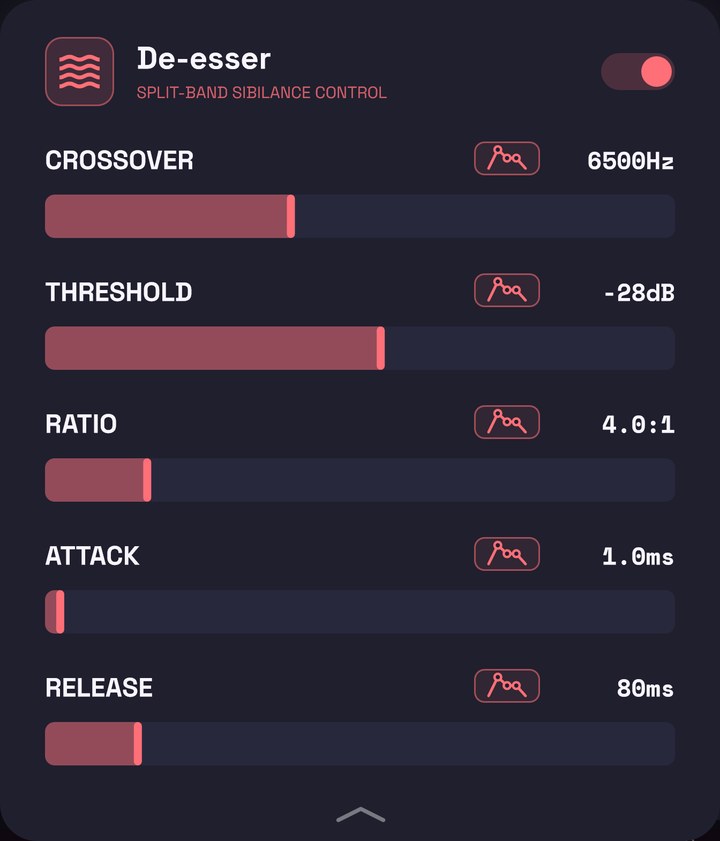
Turns down only the highs of the s, z and sh sounds when they sting, without touching the rest of the voice.
When to use it: when your esses sound like a whistle, especially after adding brightness or saturating the voice. If you overdo it, the voice sounds like you have a lisp.
| Control | Range | When added | What it does |
|---|---|---|---|
| CROSSOVER | 3000–12000 Hz | 6500 Hz | The frequency from which a sound counts as an “s”. What’s below goes through untouched. |
| THRESHOLD | −60 to 0 dB | −28 dB | The level from which it acts. Lower means it acts on more esses. |
| RATIO | 1:1 to 20:1 | 4:1 | How much it turns the esses down. Between 4:1 and 6:1 is normal. |
| ATTACK | 0.1–50 ms | 1 ms | How fast it reacts when the s starts. |
| RELEASE | 10–500 ms | 80 ms | How fast it lets go when the s ends. |
Saturation (SAT.WARM)
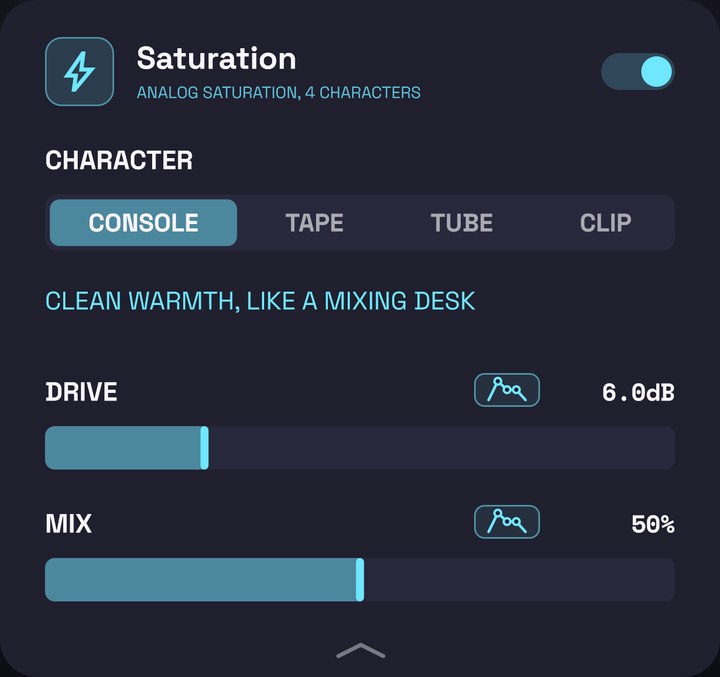
Saturates the voice the way pushed analogue gear would, with four characters to choose from: it adds harmonics, body and warmth. The volume stays more or less the same even if you raise the DRIVE: it changes the colour, not the level.
When to use it: to make the voice sound fatter and more upfront. A little DRIVE gives warmth; 12 to 18 dB, presence; at full, an aggressive, robotic sound.
| Control | Range | When added | What it does |
|---|---|---|---|
| CHARACTER | CONSOLE, TAPE, TUBE, CLIP | CONSOLE | The kind of saturation; a line underneath describes it: CONSOLE, clean warmth, like a mixing desk; TAPE, soft highs and glue; TUBE, thick and warm, like a tube preamp; CLIP, hard and bright, right in front. |
| DRIVE | 0–24 dB | 6 dB | How hard the voice is pushed. More means more colour and more distortion. |
| MIX | 0–100 % | 50 % | How much of the saturated voice is mixed with the clean one. Around 50 % the consonants stay clear. |
CHARACTER can’t be automated; DRIVE and MIX can.
Filter (FLT.SWEEP)
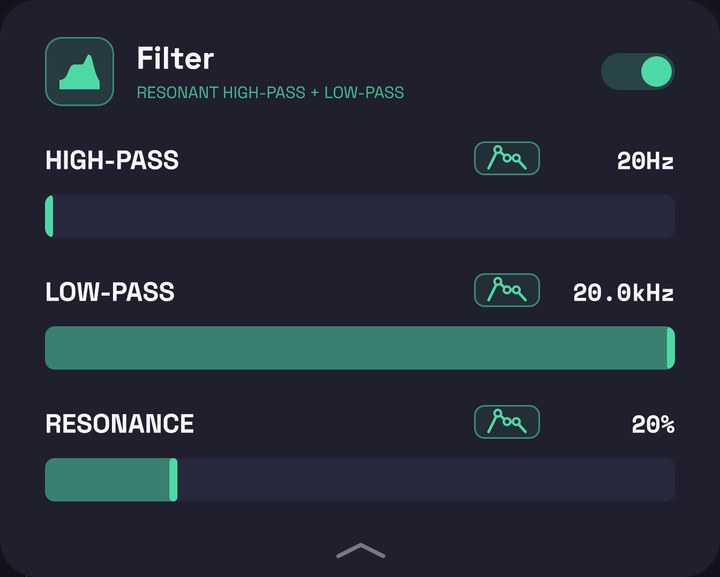
A high-pass and a low-pass in a row, across the whole audible range. Unlike the equalizer, it’s made for moving: opening and closing the voice, making it sound like it’s on the phone or underwater.
When to use it: in an intro or a bridge that should sound “far away”, or automated so the voice opens up when the chorus comes in. When added it’s fully open and you barely notice it: move the cutoffs.
| Control | Range | When added | What it does |
|---|---|---|---|
| HIGH-PASS | 20 Hz – 20 kHz | 20 Hz | Cuts the lows below this point. Raise it for a thin, radio or telephone voice. |
| LOW-PASS | 20 Hz – 20 kHz | 20 kHz | Cuts the highs above this point. Lower it for a muffled voice, as if underwater or behind a wall. |
| RESONANCE | 0–100 % | 20 % | Boosts the sound right at the cutoffs. High, the filter “sings” or whistles as it moves. |
Volume (VOL.GAIN)
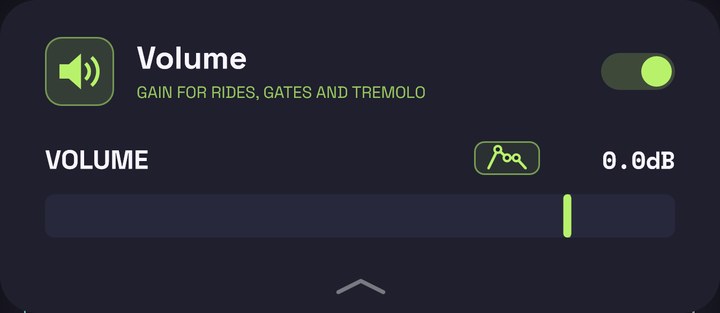
Raises or lowers the voice’s level at that point in the chain. On its own, it’s not much use; automated, it’s very handy: turning down a line that’s too loud, making a tremolo or chopping the voice in rhythm (a trance gate).
When to use it: to even out lines by hand or for rhythmic cuts. If you put it before the reverb or the delay, their tails keep ringing in the cuts.
| Control | Range | When added | What it does |
|---|---|---|---|
| VOLUME | −60 to +12 dB | 0 dB | The voice’s level. All the way down it shows OFF: silence. |
Voices
Effects that add more voices to yours, or turn it into something else. The harmonizer and the choir follow the beat’s chords when VRaptor knows them, and otherwise the tuner’s key; the vocoder always follows the tuner’s key. If the key is right, the new voices come in in tune.
Harmonizer (HARM.VX)
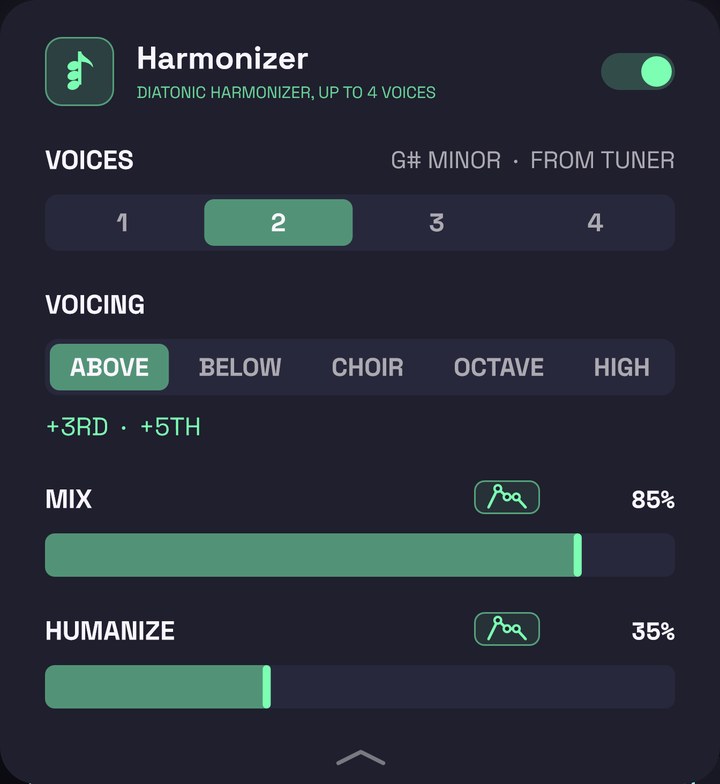
Adds up to four voices that sing your melody at other pitches (thirds, fifths, octaves), always within the scale. Each voice has a slightly different tone and comes in a few milliseconds late, so they sound like separate singers and not like an effect stuck to your voice.
When to use it: for doubles and harmonies in a chorus, backing vocals or the octave voice typical of trap. In VOICES you’ll see on the right the scale it follows and where from: BEAT’S CHORDS when it follows the song’s chords, or FROM TUNER. If the harmonies clash, check the key in the tuner.
| Control | Options or range | When added | What it does |
|---|---|---|---|
| VOICES | 1, 2, 3, 4 | 2 | How many voices are added. |
| VOICING | ABOVE, BELOW, CHOIR, OCTAVE, HIGH | ABOVE | What those voices sing (see below). Below the buttons you can read their intervals, for example “+3RD · +5TH”. |
| MIX | 0–100 % | 85 % | The level of the added voices. Your voice always plays in full. |
| HUMANIZE | 0–100 % | 35 % | How much the voices drift in pitch and timing, each a little. At 0 they’re perfect and together, like a single effect; higher, they sound like different people. |
What each voicing sings, voice by voice (with 2 voices, the first two; with 4, all of them):
| Voicing | Voices |
|---|---|
| ABOVE | 3rd, 5th, octave and 10th above |
| BELOW | 3rd, 5th, octave and 6th below |
| CHOIR | 3rd up, 4th down, 5th up, octave down |
| OCTAVE | octave down, octave up, unison, octave down again |
| HIGH | octave up, two octaves up, octave up again, unison |
VOICES and VOICING are buttons and can’t be automated; MIX and HUMANIZE can.
Choir (CHOIR.VX)
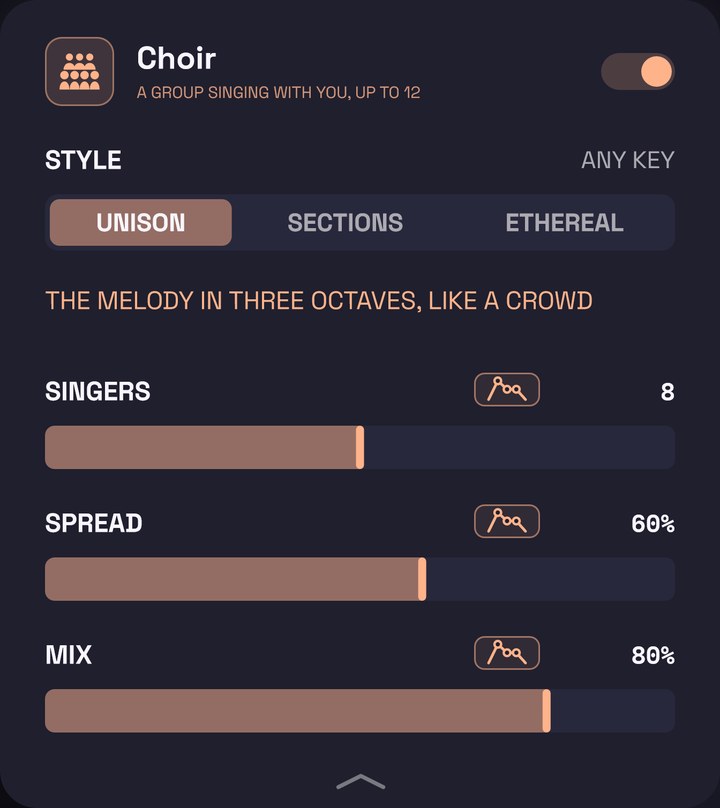
Creates a group of singers from your voice, behind it. Each one has its own tuning, delay and tone, and they all sound in a room of their own: the result is a group, not just a fatter voice.
When to use it: for group choruses, gospel-style backing or an angelic pad behind your voice.
| Control | Options or range | When added | What it does |
|---|---|---|---|
| STYLE | UNISON, SECTIONS, ETHEREAL | UNISON | What the group sings (see below). Below, the panel describes it in a sentence. |
| SINGERS | 4–12 | 8 | How many singers. More singers make the choir bigger, not louder. |
| SPREAD | 0–100 % | 60 % | How different they are from each other and from you: tuning, timing and tone. Low, a very precise group, almost synthetic; high, a crowd of amateurs. |
| MIX | 0–100 % | 80 % | The level of the choir. Your voice always plays in full. |
The styles:
- UNISON: “The melody in three octaves, like a crowd”. Works in any key (on the right you’ll see ANY KEY).
- SECTIONS: “Basses, thirds and fifths around the lead”. Follows the beat’s chords or the tuner’s key.
- ETHEREAL: “Octave up, far away, swelling in”. An angelic pad in a large room. Follows the beat’s chords or the tuner’s key.
STYLE can’t be automated; the other controls can.
Vocoder (VOC.ROBOT)
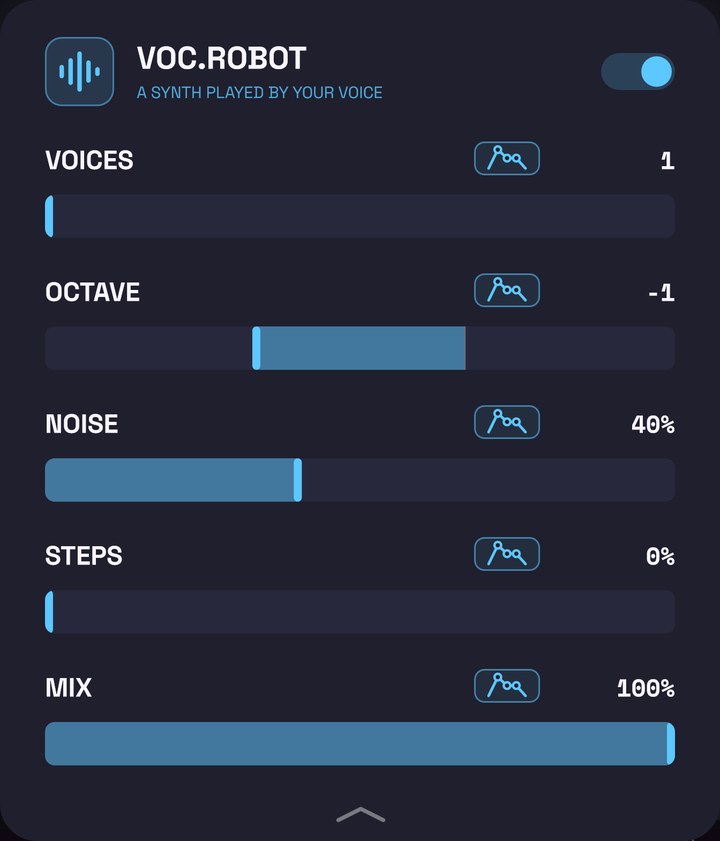
A synth plays the note you sing, snapped to the scale, and your voice only shapes it. It comes out with your words and your rhythm, but with the tone of a synth: the classic robot voice, always in tune. On consonants (s, t, ch) the synth turns into noise, so they can be understood.
When to use it: for a clear robot voice (the ROBOT style uses it), or with a low MIX as a synthetic layer under your voice. It works best at the start of the chain.
| Control | Range | When added | What it does |
|---|---|---|---|
| VOICES | 1–4 | 1 | How many notes the synth plays: 1 is your note; 2 adds its fifth; 3, the third as well; 4, the octave below as well. A chord within the key. |
| OCTAVE | −2 to +1 | −1 | Raises or lowers the synth in octaves. −1 gives it a deeper, more robotic voice. |
| NOISE | 0–100 % | 40 % | The volume of the consonants (which sound like a whisper). Low, they’re harder to understand; high, they hiss. |
| STEPS | 0–100 % | 0 % | At 0 the synth glides between notes and the voice flows. At 100 it jumps from note to note and the voice moves in little hops, like an old talking machine. |
| MIX | 0–100 % | 100 % | How much synth against your voice. At 100 you only hear the synth. |
Growl (GRWL.RASP)
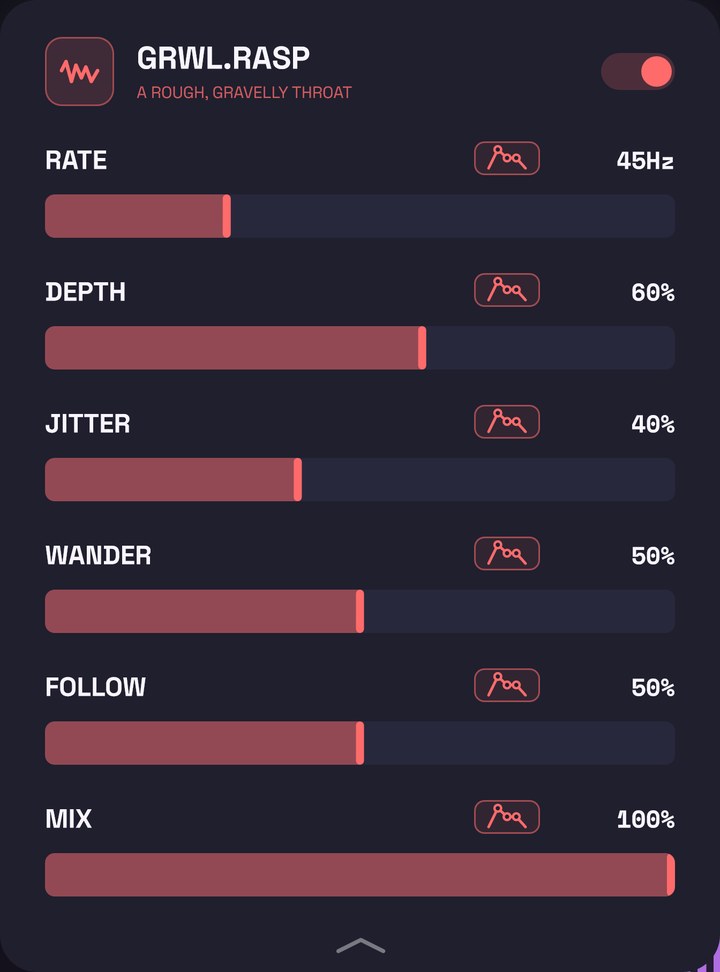
Breaks the voice into very fast, uneven pulses, like a raspy throat: a broken voice, vocal fry or a monster’s growl. It isn’t a clean tremolo: each pulse comes a little early or late and a little louder or softer. The volume is compensated, so the voice doesn’t end up quieter.
When to use it: for demon voices, aggressive parts or a broken word. Automating the MIX so it only comes in on one line works really well.
| Control | Range | When added | What it does |
|---|---|---|---|
| RATE | 15–120 Hz | 45 Hz | How many pulses per second. Low, a slow rumble; high, a fine rasp. |
| DEPTH | 0–100 % | 60 % | How deep each pulse cuts. |
| JITTER | 0–100 % | 40 % | How much the pulses vary in timing and strength. |
| WANDER | 0–100 % | 50 % | How much the rate changes by itself, like a real throat (at 100 %, up to an octave up or down). |
| FOLLOW | 0–100 % | 50 % | How much the rate follows how hard you sing: slow when you sing softly, faster and rougher when you push. |
| MIX | 0–100 % | 100 % | How much growl against your clean voice. |
Ring modulator (RING.MOD)
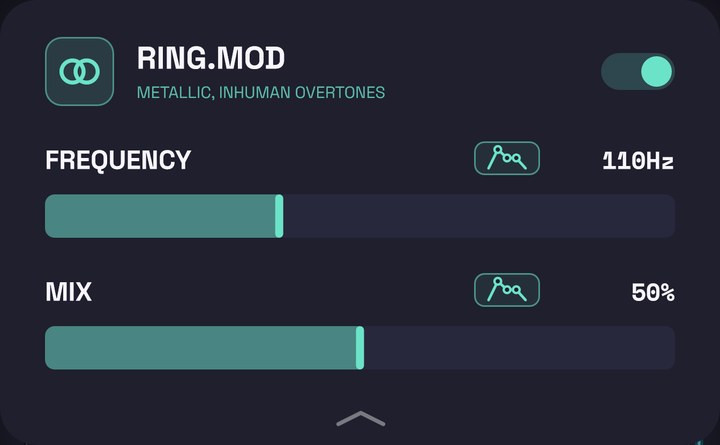
Multiplies the voice by a fixed tone. Each note you sing comes out as two notes no throat can make and that don’t fit any key: a metallic sound, like an old robot or a possessed voice.
When to use it: as a one-off effect, on a word or a line. With a low FREQUENCY (30–150 Hz) the voice turns rough and dark; from about 500 Hz it sounds like a metal bell.
| Control | Range | When added | What it does |
|---|---|---|---|
| FREQUENCY | 20 Hz – 2 kHz | 110 Hz | The tone the voice is multiplied by. It changes the effect’s character. |
| MIX | 0–100 % | 50 % | How much effect against your clean voice. |
Space
Where your voice is: in a room, far away, with echoes. Both have DUCK: the effect dips while you sing and comes back up in the gaps, so the voice stays clear and the space shows between lines.
Reverb (VERB.ROOM)
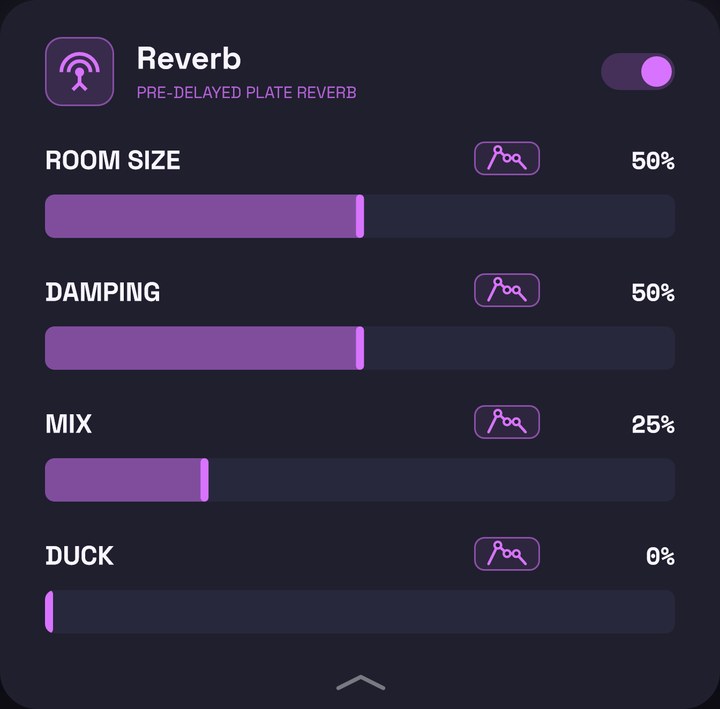
Puts your voice in a room (a smooth, moving plate reverb). Its tail starts a little after the voice and leaves out the voice’s lows, so the words stay clear and the tail doesn’t muddy the beat’s bass.
When to use it: a little, almost always. A low MIX and a small room so the voice doesn’t sound dry; a lot, for ballads or distant sounds.
| Control | Range | When added | What it does |
|---|---|---|---|
| ROOM SIZE | 0–100 % | 50 % | How big the room is: bigger means a longer tail. |
| DAMPING | 0–100 % | 50 % | How dark the tail is. Low, bright; high, muffled. |
| MIX | 0–100 % | 25 % | How much reverb you hear. Up to 50 % your voice stays whole and the reverb is added; above that the voice makes room, and at 100 % you only hear the reverb. |
| DUCK | 0–100 % | 0 % | How much the reverb dips while you sing. At 100 % it disappears under the voice and blooms in the gaps. |
Delay (DLY.ECHO)
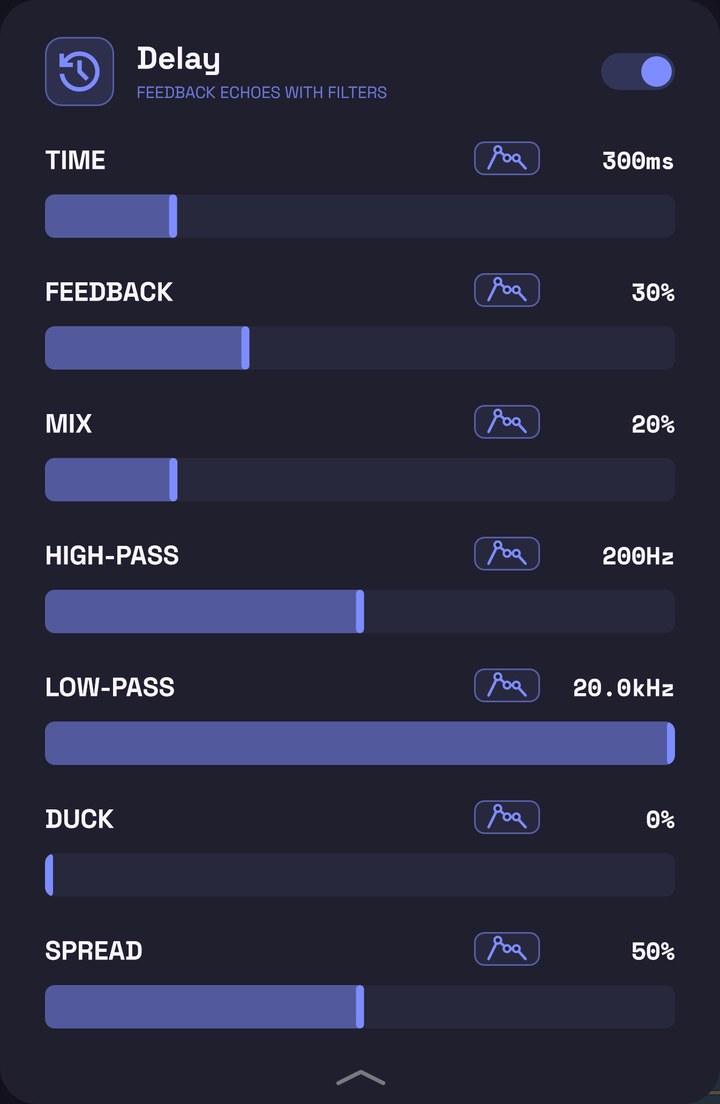
Repeats your voice like an echo. It takes some low end off each repeat, so the echoes don’t pile up into mud under the next line, and, with LOW-PASS, some top end too.
When to use it: for the short echo typical of trap and reggaeton, or to make the last word of a line repeat (automate MIX so it only plays there).
| Control | Range | When added | What it does |
|---|---|---|---|
| TIME | 1–1500 ms | 300 ms | How long each echo takes. |
| FEEDBACK | 0–95 % | 30 % | How many echoes: at 0 there’s a single repeat; near the top, the echoes barely fade. |
| MIX | 0–100 % | 20 % | The level of the echoes. Up to 50 % your voice stays whole; above that it makes room, and at 100 % you only hear the echoes. |
| HIGH-PASS | 20 Hz – 2 kHz | 200 Hz | How much low end is taken off the echoes. Higher means thinner echoes. |
| LOW-PASS | 1–20 kHz | 20 kHz | Darkens the echoes: each repeat comes back duller, like tape. At 20 kHz it does nothing. |
| DUCK | 0–100 % | 0 % | How much the echoes dip while you sing. They come back in the gaps. |
| SPREAD | 0–100 % | 50 % | Where the echoes go: at 0, all in the centre; at 100, they bounce from left to right (ping-pong). |
Motion and tricks
Effects for specific moments: sweeps, broken sounds, tape stops. Almost all of them shine more automated than fixed.
Flanger (FLG.JET)
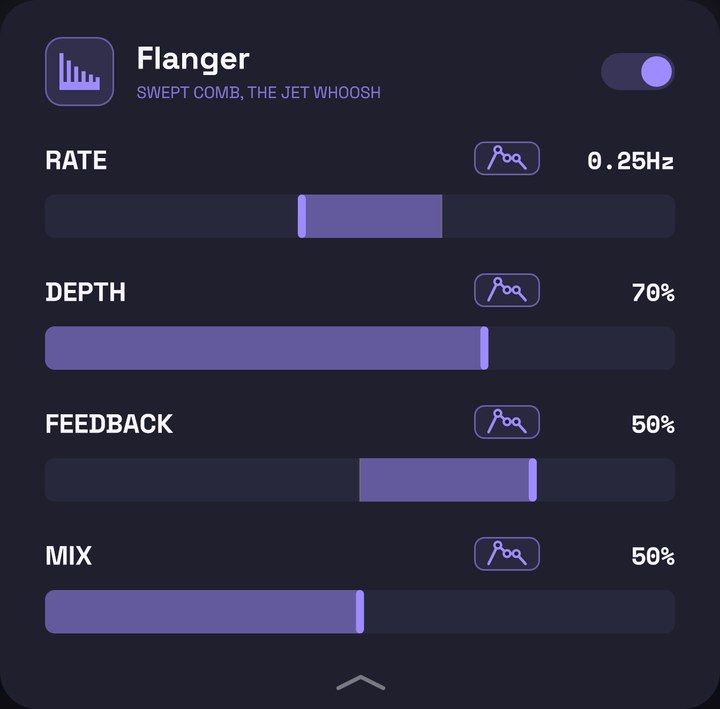
Mixes the voice with a copy of itself a few milliseconds late, and that delay rises and falls. The result is the “jet plane” sweep.
When to use it: on a line or a bridge to give it movement, or with lots of FEEDBACK for a metallic sound.
| Control | Range | When added | What it does |
|---|---|---|---|
| RATE | 0.02–10 Hz | 0.25 Hz | How many sweeps per second. One sweep per bar or every two is the classic. |
| DEPTH | 0–100 % | 70 % | How wide the sweep is. |
| FEEDBACK | −90 to +90 % | 50 % | Positive, a more metallic, ringing sound; negative, hollower. |
| MIX | 0–100 % | 50 % | How much effect. At 50 % the sweep is most noticeable. |
Phaser (PHS.SWIRL)
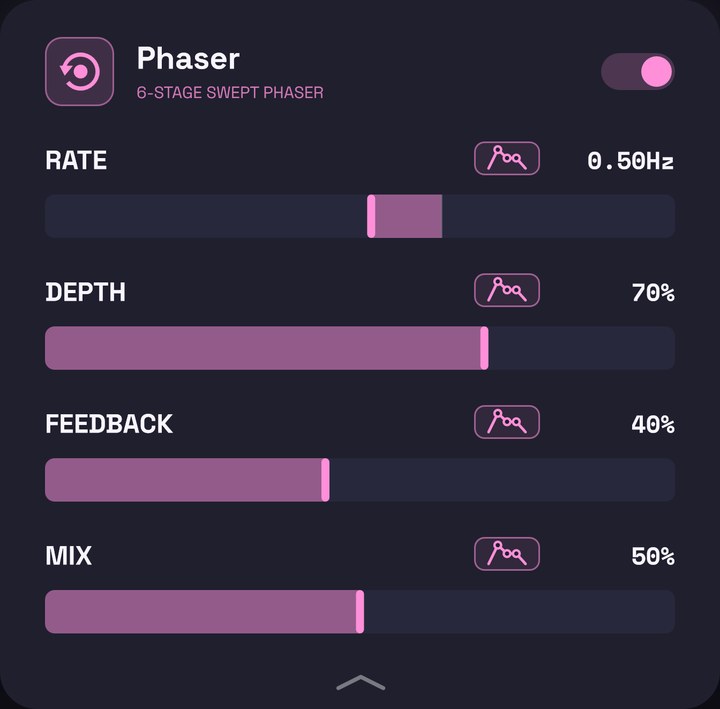
Spins a few notches through the sound of the voice: a swirl that’s softer and more vocal than the flanger’s.
When to use it: to give gentle movement to a long voice or a psychedelic chorus.
| Control | Range | When added | What it does |
|---|---|---|---|
| RATE | 0.02–10 Hz | 0.5 Hz | How many turns per second. |
| DEPTH | 0–100 % | 70 % | How far the sweep travels (from 200 Hz up to about 4.5 kHz at full). |
| FEEDBACK | 0–90 % | 40 % | How strong the effect is. |
| MIX | 0–100 % | 50 % | How much effect. |
Bitcrusher (BIT.CRUSH)
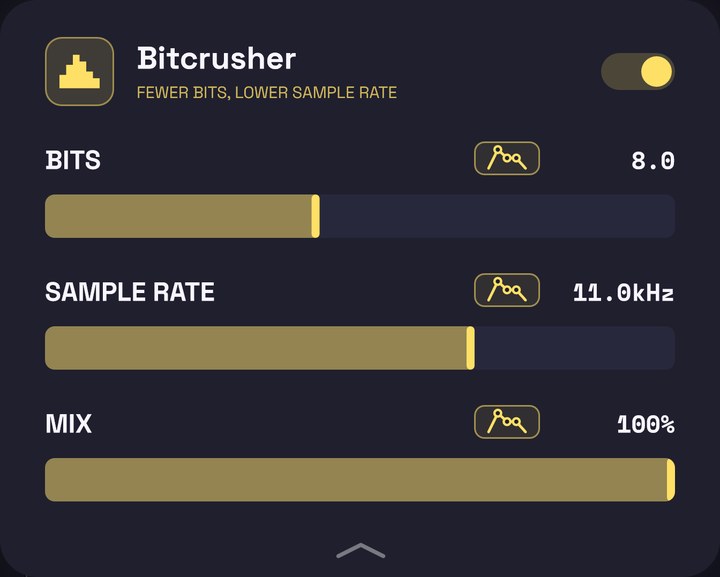
Lowers the voice’s quality on purpose: fewer bits (a grainy, crackly background) and a lower sample rate (metallic, robotic overtones). It sounds like an old sampler or a video game.
When to use it: hyperpop, lo-fi, video game sounds, or to dirty up a robot voice.
| Control | Range | When added | What it does |
|---|---|---|---|
| BITS | 2–16 | 8 | The resolution. Fewer bits, more grain and noise. |
| SAMPLE RATE | 500 Hz – 48 kHz | 11 kHz | The sample rate. Lower means more metallic and robotic. |
| MIX | 0–100 % | 100 % | How much effect against your clean voice. |
Reverse reverb (REV.SWELL)
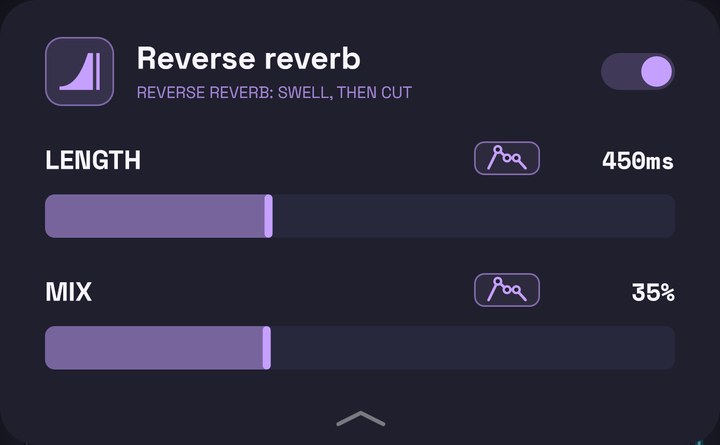
After each sound a cloud appears that swells and cuts off sharply, like a reverb tail played backwards. It doesn’t swell before the word (for that the app would have to hear the future); it swells right after.
When to use it: on slow, ambient voices or on a single line to make it sound unreal.
| Control | Range | When added | What it does |
|---|---|---|---|
| LENGTH | 150–1000 ms | 450 ms | How long the cloud takes to swell before it cuts. |
| MIX | 0–100 % | 35 % | The level of the cloud. Your voice always plays in full. |
Tape stop (TAPE.STOP)
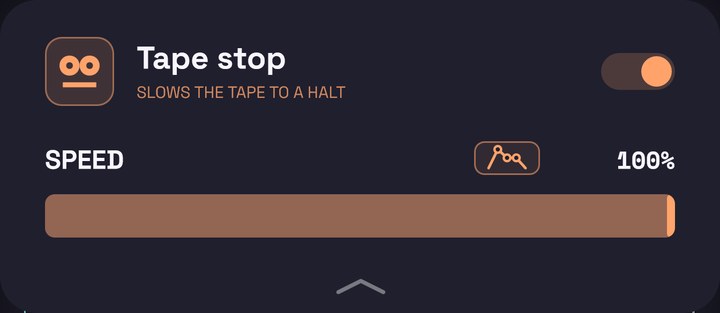
Makes it sound as if your voice were playing from a tape that’s slowing down: pitch and volume drop until it stops. When the speed comes back up, the tape starts again and catches up with your voice.
When to use it: at the end of a line or before a change of section. It’s used automated: leave SPEED at 100 % and draw a curve that drops to 0 where you want the stop. If it comes after the reverb or the delay, their tails slow down with the voice.
| Control | Range | When added | What it does |
|---|---|---|---|
| SPEED | 0–100 % | 100 % | The tape’s speed. At 100 % it’s your normal voice; at 0, stopped. |
Next
→ 9. Automation: draw how any control changes over the song.