Once you’ve got your voice just how you want it in Pro (a gentler tuner, a different echo, an extra effect), there’s no need to rebuild it for every song. Save it in Custom presets and you’ll have it next to VRaptor’s styles, in Pro and in Simple, for any song.
Saving a style
Styles can only be saved from Pro.
- In Pro, open the style picker (the card with the style’s name, next to the tuner card).
- Scroll to the end of the list and tap Save (“Keep this sound as a custom preset”).
- Type a Name (up to 24 characters) or keep the one suggested, like “Custom preset 3”, and tap Save.
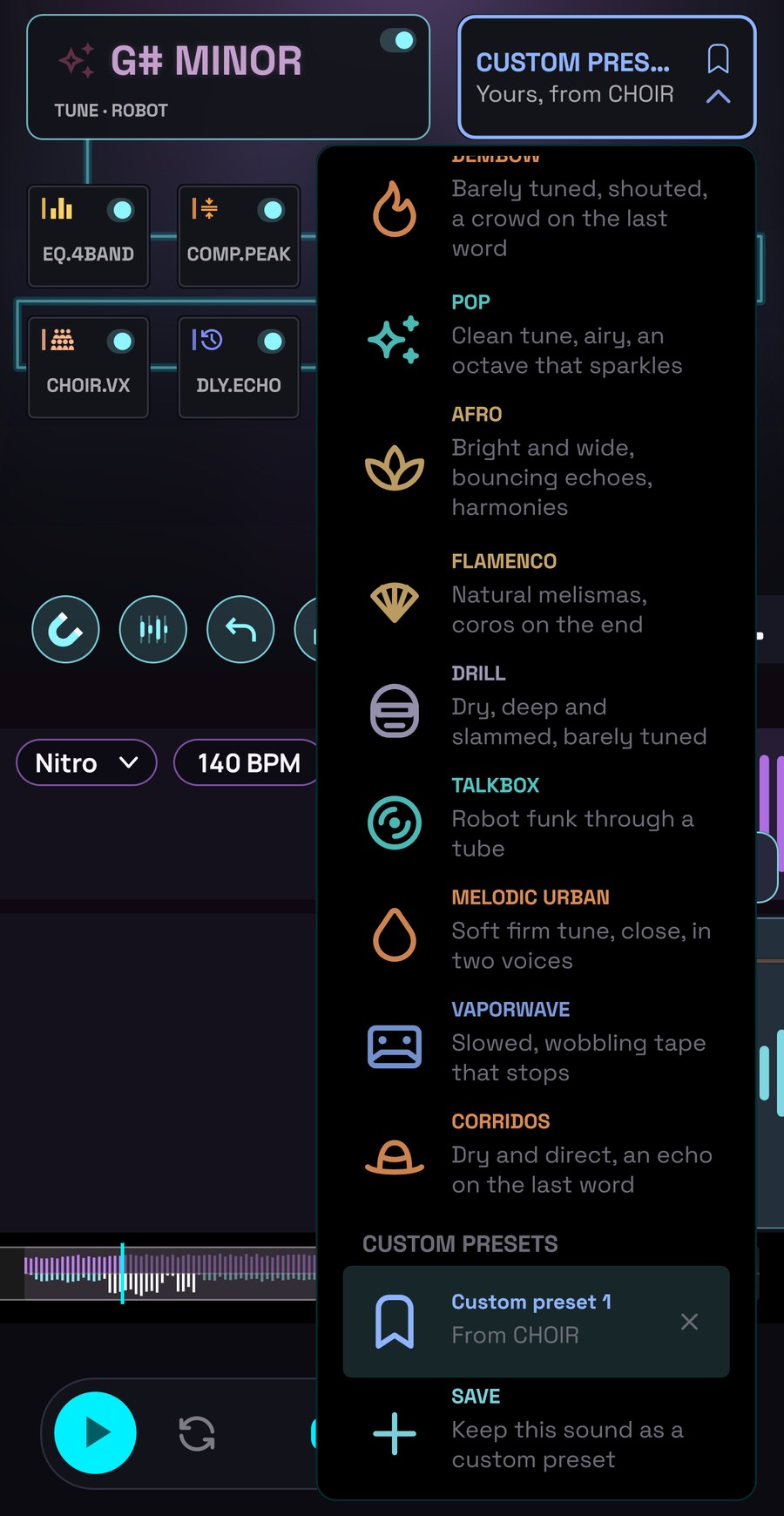
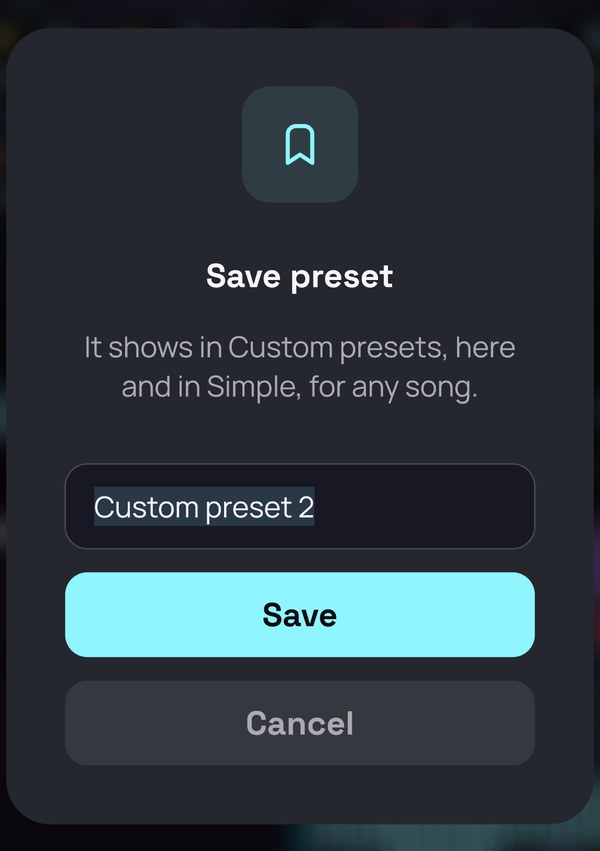
What gets saved is the sound of the take you’re editing (the one shown in the take stepper). From then on that take uses your style, and so do the takes you record afterwards.
Saving styles is part of Premium: without Premium, Save and Update show a padlock and, when you tap them, VRaptor explains what Premium includes. If you no longer have Premium, the styles you’ve already saved are still there, but you can’t save new ones or update them.
What’s saved (and what isn’t)
Saved:
- The whole effects chain: the tuner, each effect, their order and their values.
- Which VRaptor style you started from. Your style inherits its motion from it (the curves the style places on each take, like an echo at the end of each line) and its controls in Simple.
Not saved:
- The key. When you use your style, your voice is still tuned to the song’s key.
- Voice cleanup, which VRaptor adjusts to each recording.
- Curves you drew by hand in the curve editor. The motion is always that of the style you started from.
Using your styles
In Pro, your styles appear in the style picker under the heading Custom presets, each with its name and the style it comes from (“From RAPTOR”). Tap one to apply it.
In Simple, they appear in the carousel after VRaptor’s styles, in the colour of the style they come from and labelled “Yours, from RAPTOR”. Swipe to it like any other. Its controls are those of the style you started from.
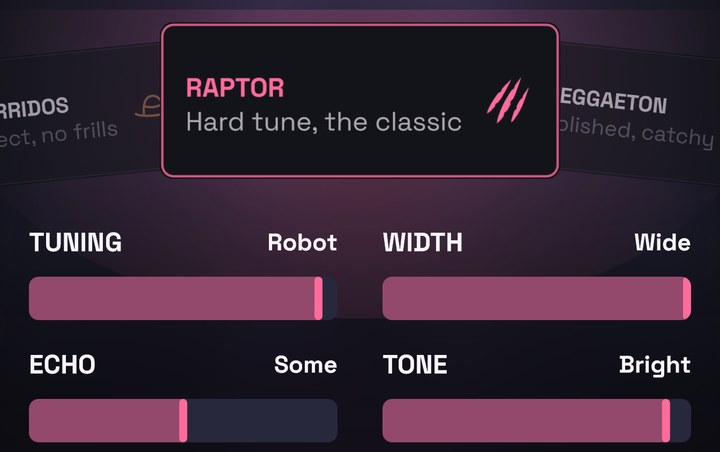
Like any style, it applies to the take you’re editing and carries over to the takes you record afterwards. Each time you apply one, you can undo it with Undo.
Each of your styles counts as the style it started from. Started from a free one, you export with it without Premium. Started from a Premium one (for example “Yours, from DRILL”), without Premium it carries its padlock, like DRILL: you can use it and listen to it, but exporting a song with it is Premium.
Update or save as new
If you apply one of your styles and then change it in Pro, the list gives you two options:
- Update (with your style’s name below it): replaces the saved style with the current sound. Other songs and takes that already used it keep their sound; the change applies from now on.
- Save: saves it as a new style, with a different name, and leaves the original as it was.
Update only appears when the sound is no longer the same as your saved style.
Renaming and deleting
In Pro’s style list:
- Rename: press and hold your style. Type the new name and tap Save.
- Delete: tap the × to the right of your style. VRaptor asks Delete preset? and reminds you that songs using it keep their sound. Tap Delete.
A song that used a deleted style sounds just as it did before; it simply shows up as Custom now.
Only on your phone
Your styles are stored on your phone, for all your songs. They can’t be shared or sent to someone else.
Next
→ 11. Exporting and sharing: your song as a video or as audio.