Everything you need to get the most out of DiPLO Pocket: record, transcribe, find what was said and take it to your computer. What DiPLO is and what each plan includes is on the DiPLO page.
On this page: Record · Transcribe · The transcript · Listen · The library · Import · Share · To your computer over Wi-Fi · Settings · Premium · Troubleshooting
Record
Tap the big round button at the bottom of the library. The first time, your phone asks for permission to use the microphone. After that, DiPLO starts recording as soon as the recording screen opens: the top says RECORD ACTIVE.
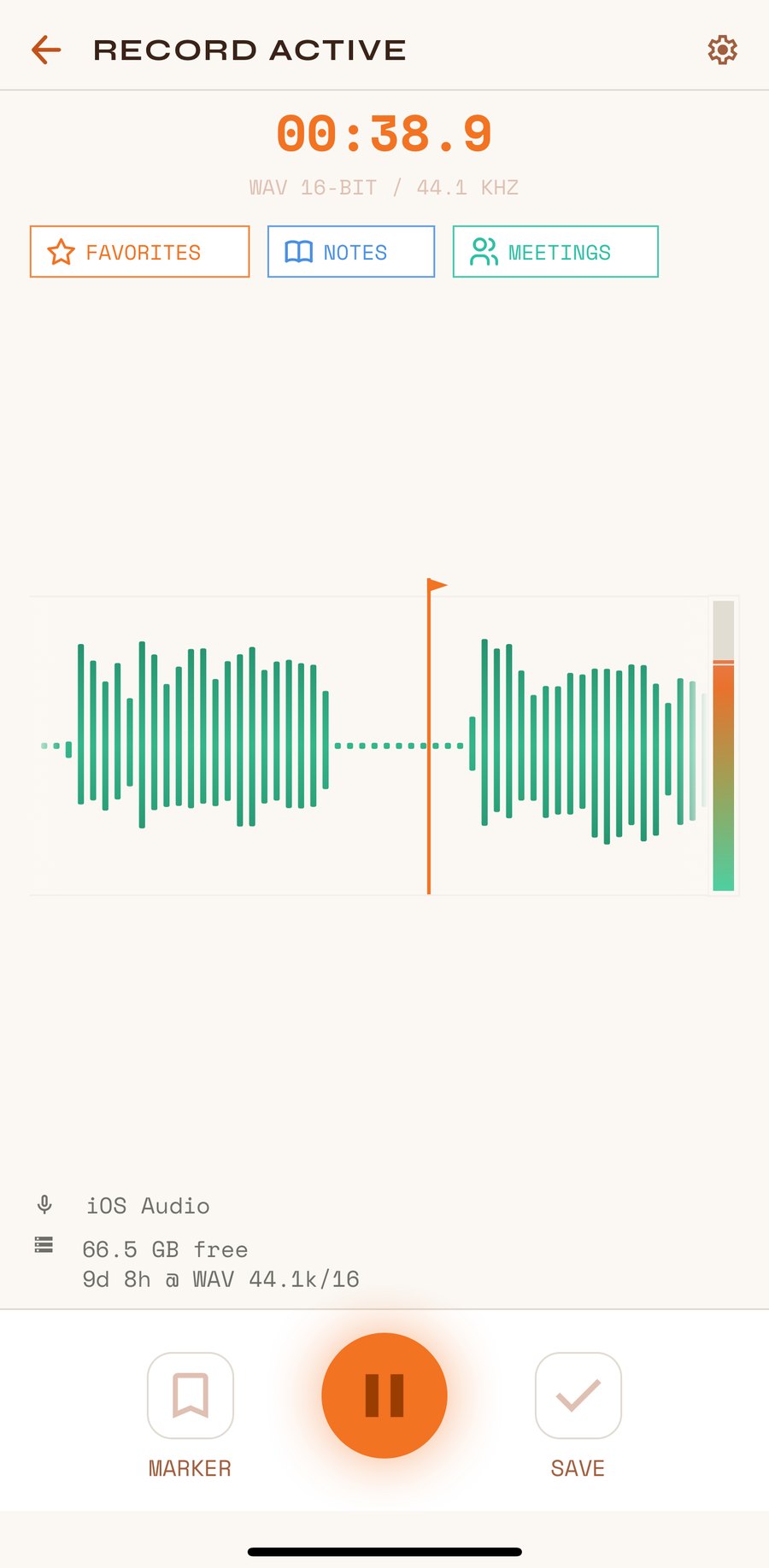
On the recording screen you see:
- The time recorded and the format (for example, WAV 16-BIT / 44.1 KHZ).
- Tags: tap one to put it on the recording (tap again to remove it). A recording has one at most.
- The waveform of the last few seconds and, to its right, the level meter.
- At the bottom, the microphone in use, the free space and how much recording time you have left in that format.
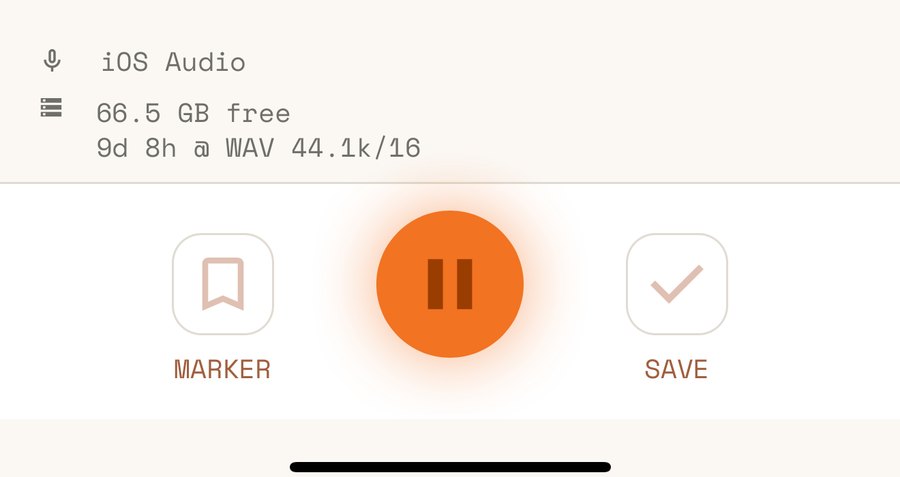
- Pause: tap the centre button to pause and again to carry on. The screen shows RECORD PAUSED.
- MARKER: drops a marker at that moment, for example when something important starts. Later you can jump from marker to marker while listening.
- SAVE: stops and saves the recording, and opens its detail screen.
If you go back with the arrow while recording, DiPLO asks DISCARD RECORDING?: DISCARD deletes it and KEEP RECORDING carries on.
You can leave the app while recording. On Android you’ll see the “Recording in progress” notification; tap it to come back.
Transcribe
Transcription runs on the phone itself, without sending the audio anywhere. DiPLO detects the language by itself (25 European languages) and adds punctuation.
The first time, the model has to be downloaded, just once. DiPLO asks with DOWNLOAD MODEL; the standard model is about 416 MB, so Wi-Fi is best. After that it works offline, even in flight mode.
There are two ways to transcribe:
1. Afterwards, from the recording’s detail screen. Tap TRANSCRIBE.
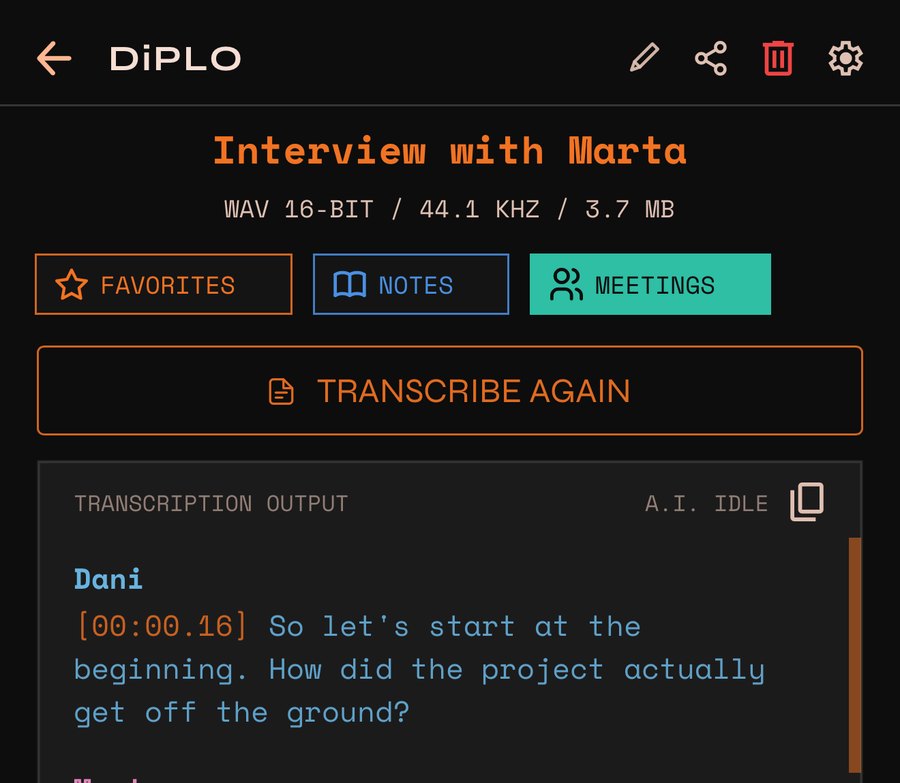
- While it works, the TRANSCRIPTION OUTPUT card shows A.I. ACTIVE and the percentage, and the button becomes ABORT TRANSCRIPTION.
- If you leave the screen halfway, DiPLO asks PAUSE TRANSCRIPTION?. What’s done is kept; when you come back the button says CONTINUE TRANSCRIPTION and it carries on from there. The same happens if the app goes to the background.
- When it’s done, the button changes to TRANSCRIBE AGAIN, in case you want to redo it (for example, with the other model).
- Only one recording is transcribed at a time.
2. While you record. Turn on Settings → Transcription → Transcribe While Recording. DiPLO transcribes as you record: the first text arrives after a few seconds and then updates every twenty or so. When you save, the transcript is already there. With this on, imported audio is also transcribed by itself when you open it.
The transcript
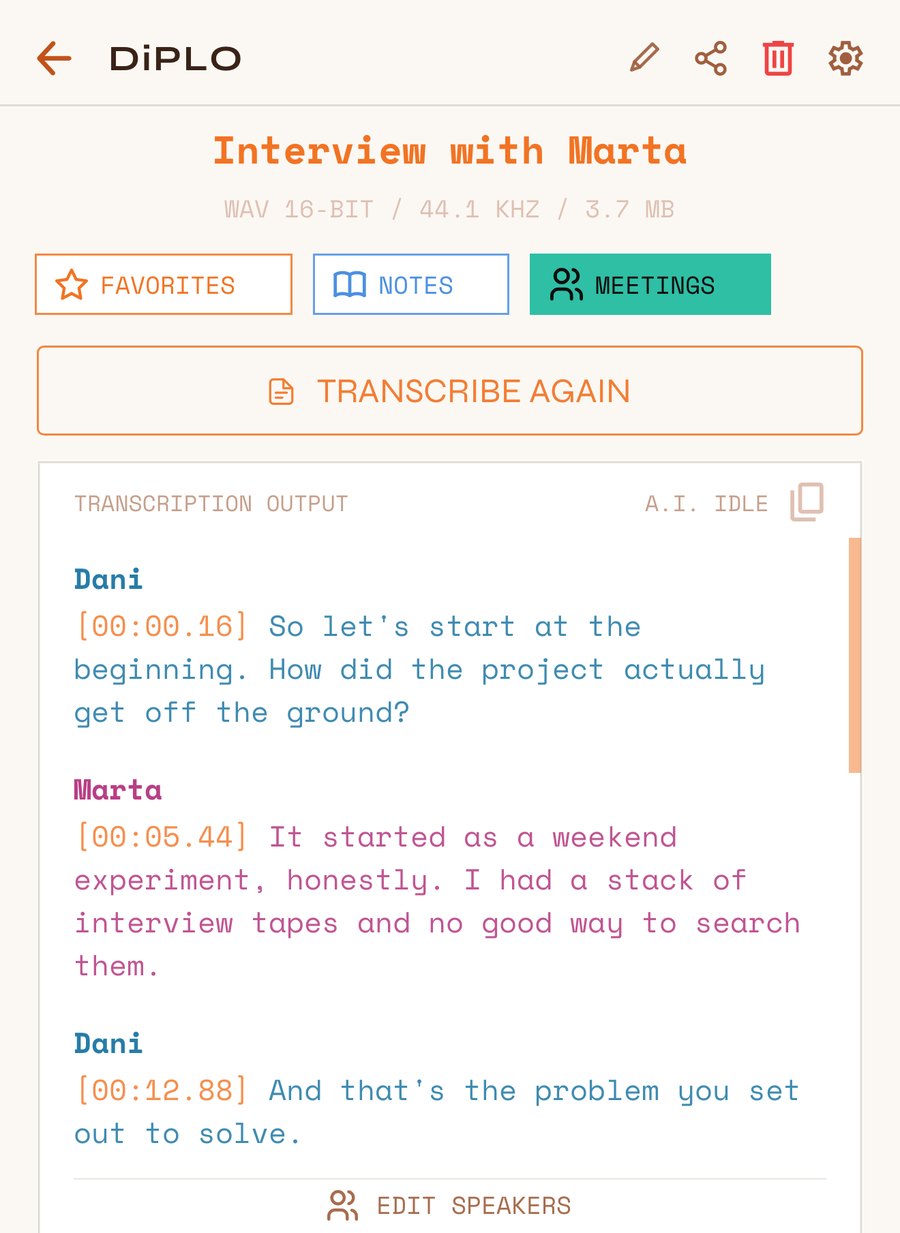
- Tap any line and the audio jumps to that moment. While it plays, the line being heard lights up.
- Copy: the icon at the top right of the card copies the whole transcript (COPIED).
- Timestamps: each line carries its minute and second. If you prefer clean text, turn them off in Settings → Transcription → Show Timestamps.
- Who is speaking (Premium): with Identify Speakers on (Settings → Transcription), DiPLO splits the text by voice: Speaker 1, Speaker 2… With EDIT SPEAKERS you give them names and colours.
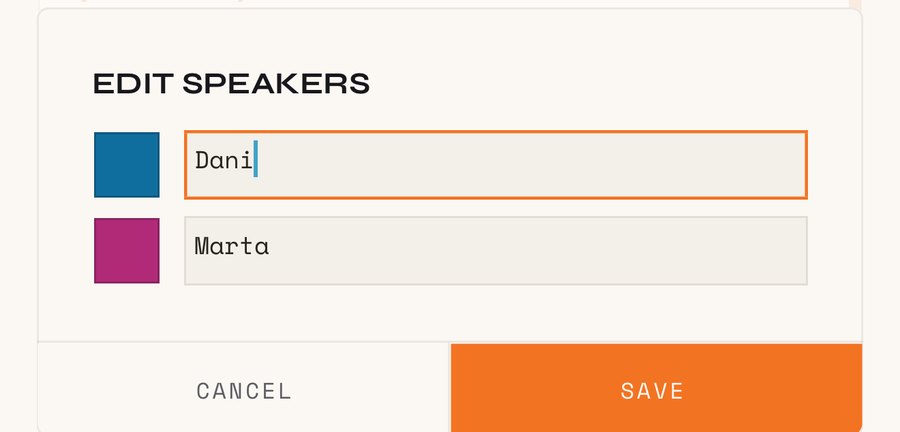
The transcript text can’t be edited inside the app. To polish it, share it (see Share) and edit it wherever you like.
Listen
On each recording’s detail screen:
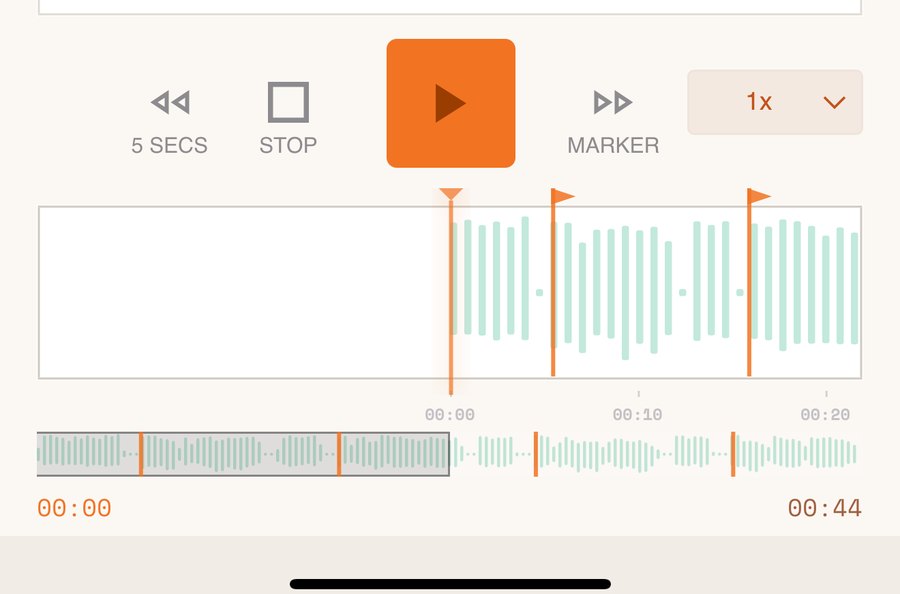
- Play / pause: the big orange square. STOP stops playback.
- Back and forward: skip 5 SECS, or to the previous or next marker if there is one (they then say MARKER).
- Speed: from 1x to 2x, without changing the pitch of the voice.
- The waveform: drag it to move around; the little flags are your markers. The strip below is the whole recording.
At the top of the screen you have rename (pencil), share and delete.
The library
It’s the main screen: all your recordings, newest first.
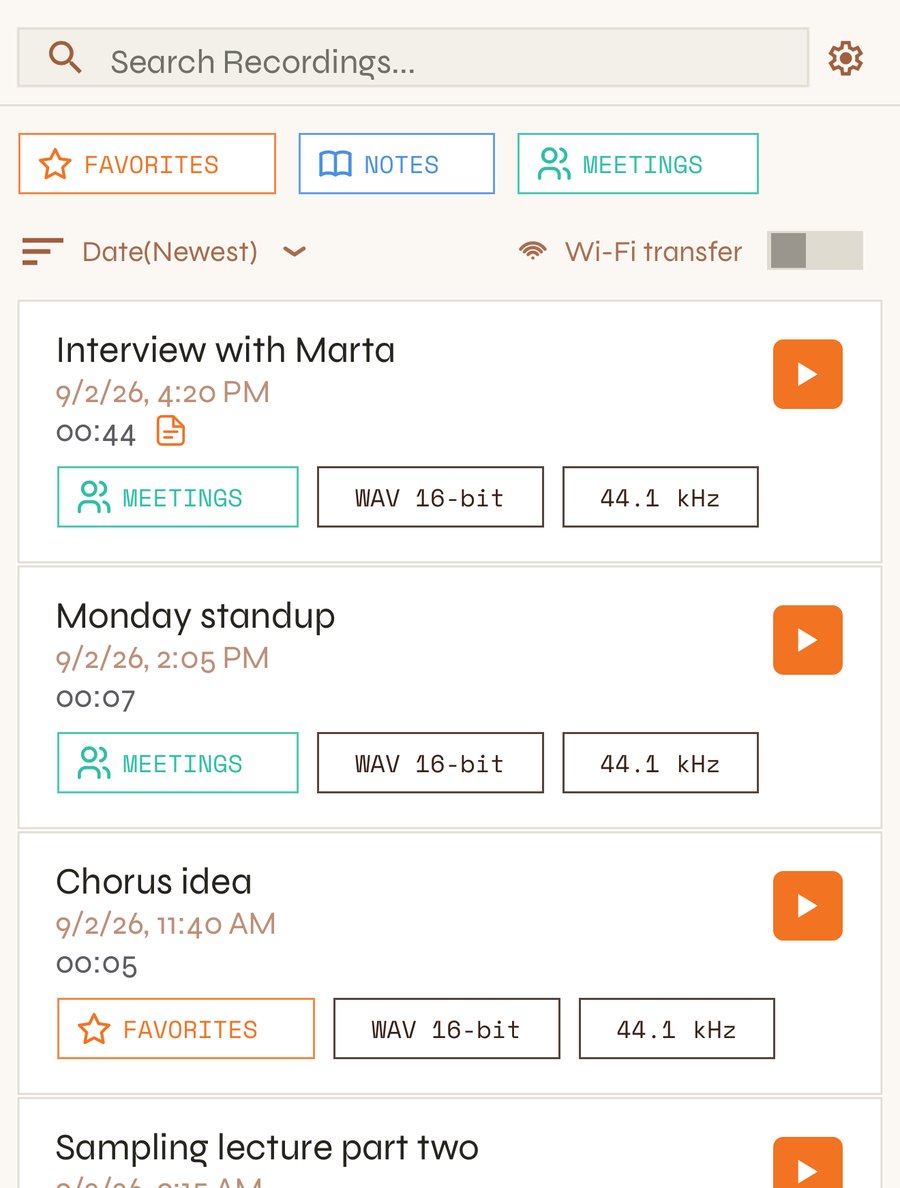
- Tap a recording to open its detail screen, or its orange button to play it without opening it.
- Tags: tap one or more to see only those recordings.
- Sort: by date, name or duration (Date(Newest), Name(A-Z), Duration(Longest)…).
- Swipe a recording sideways to DELETE it.
- Long-press a recording to select several. Share, delete and, with just one, rename appear at the top.
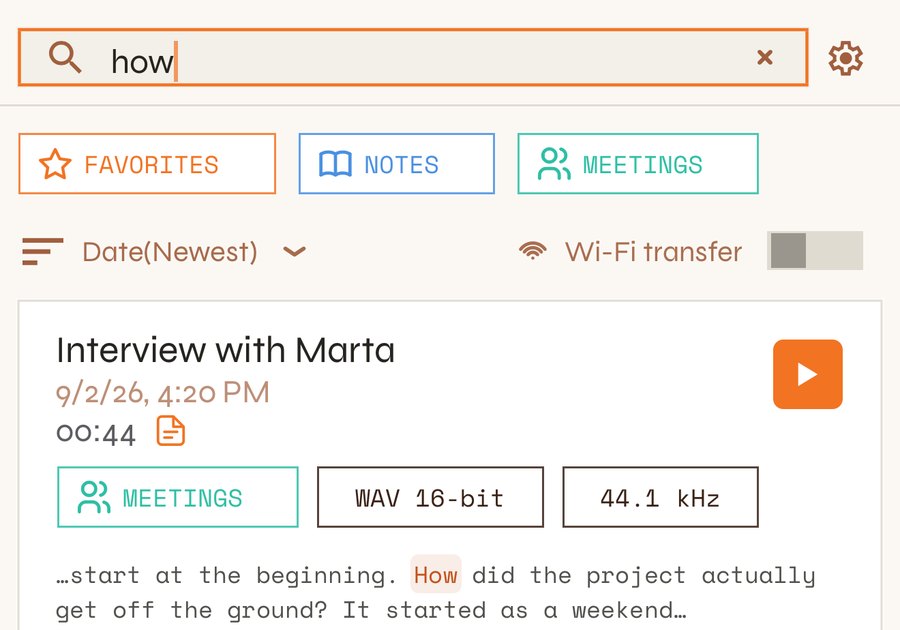
Search. Type in Search Recordings…. DiPLO searches the names and inside the transcripts, ignoring case and accents. If the word is in what was said, you’ll see the snippet with the word highlighted; open it and the transcript goes straight to that line, with the audio positioned there.
Deleting is permanent: a deleted recording can’t be recovered.
Import
Got voice notes, WhatsApp audio or videos you’d like transcribed?
- Tap IMPORT, to the right of the record button, and pick one or more files. On iPhone you can choose between FILES and VIDEOS.
- Or, from another app, use Share and pick DiPLO.
DiPLO takes the usual audio and video formats (from videos it keeps the sound). If you import a single file, its detail screen opens so you can transcribe it.
Share
Tap share on a recording’s detail screen, or select several in the library. If the recording has a transcript, you choose what to send:
- Audio
- Transcription (text): the plain text, to paste into a message or an email.
- Transcription (.md file): a file with the transcript, timestamps and speaker names, which opens in any editor.
DiPLO remembers what you chose last time.
To your computer over Wi-Fi
(Premium) To move lots of recordings in one go, with no cables or cloud:
- Put the phone and the computer on the same Wi-Fi network.
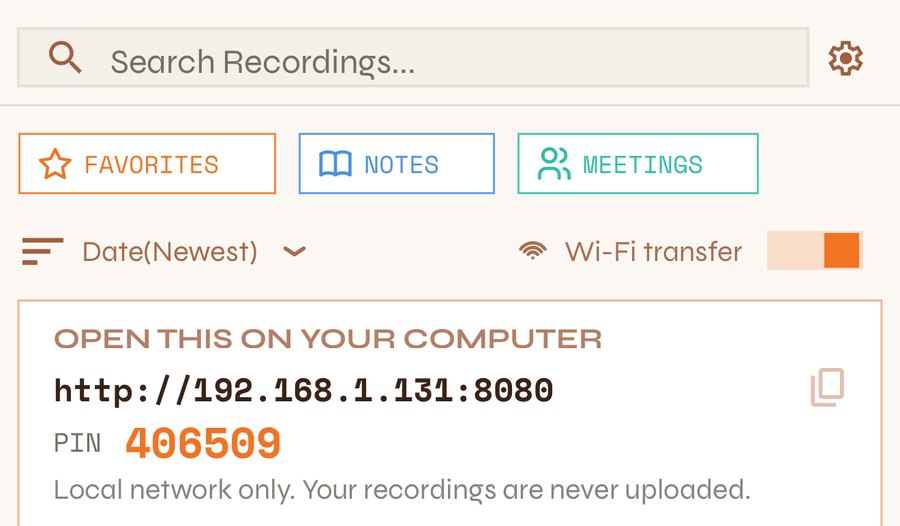
- In the library, turn on Wi-Fi transfer.
- An address appears (for example
http://192.168.1.34:8080) and a PIN.
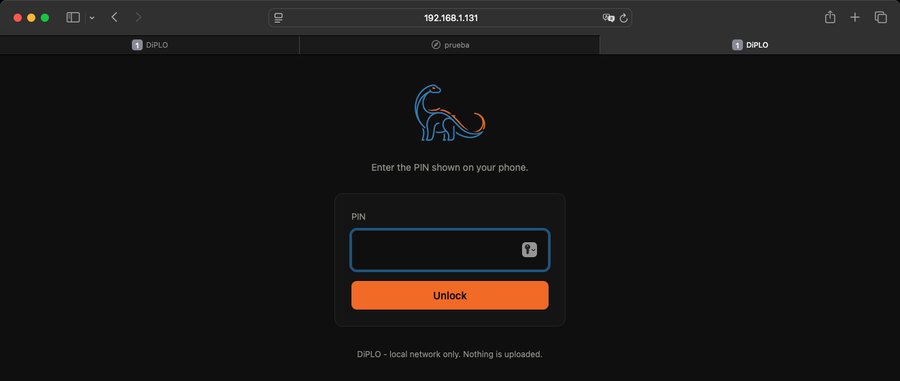
- Type that address into the computer’s browser and enter the PIN.
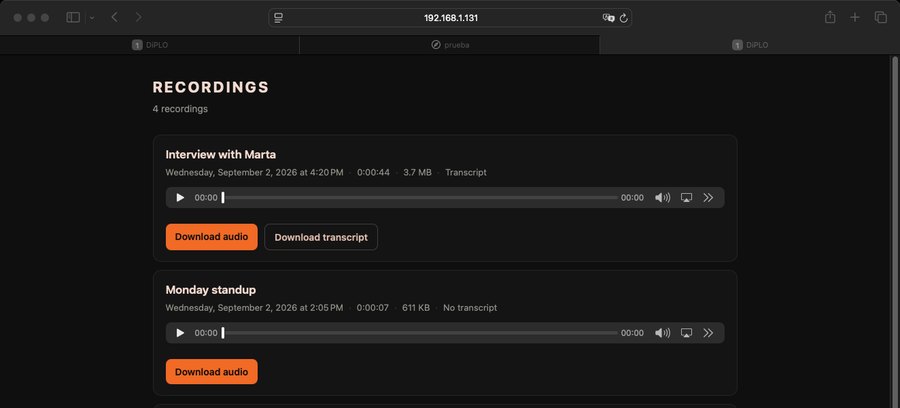
- You’ll see your library: you can play each recording right there, Download audio or Download transcript.
Everything goes straight from the phone to the computer over your network, never over the internet. So it isn’t left open, it switches itself off if you leave the library, if the app goes to the background or after 5 minutes without use. The PIN is new every time you turn it on.
Settings
The gear at the top right opens the settings.
Audio. The format of new recordings (the ones you already have don’t change):
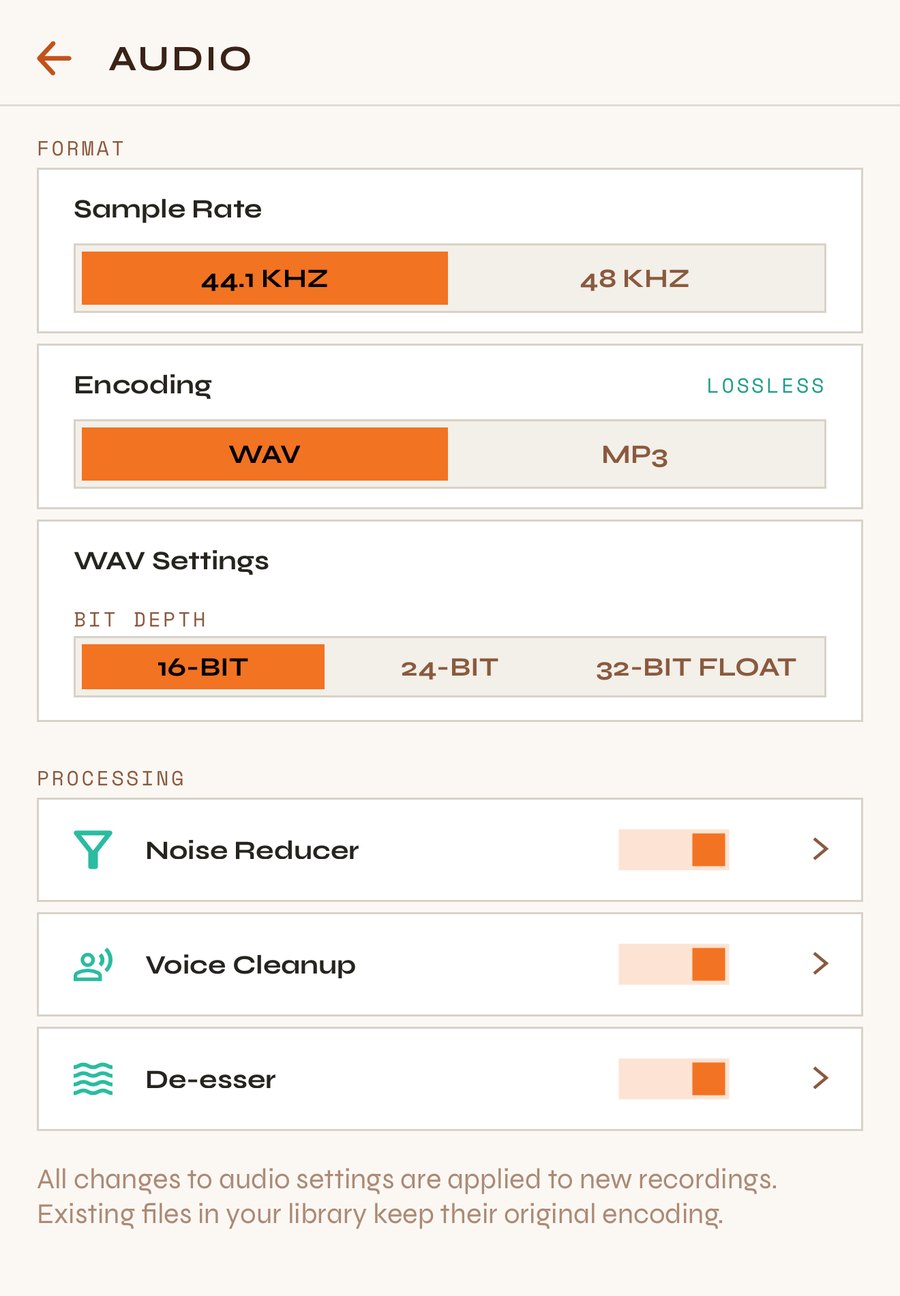
- Encoding: WAV (lossless, best quality) or MP3 (much smaller). With MP3 you choose CBR or VBR and the bitrate.
- Sample Rate and bit depth: 44.1 kHz and 16-bit are plenty for voice. 48 kHz and 24/32-bit WAV are Premium.
- Processing: Noise Reducer, Voice Cleanup and De-esser, on by default, improve the voice as you record. Tapping each one takes you to its fine controls (Premium).
Transcription.
- Transcribe While Recording (see Transcribe).
- Identify Speakers (Premium, beta): downloads two more small models (about 32 MB).
- Show Timestamps.
- AI transcription models: Raptor (balanced, 416 MB, the default) and Rex (high quality, 669 MB, Premium). Rex transcribes a little better but is slower. You can delete a downloaded model with the bin and download it again whenever you like.
Tags. Create your own with + ADD: name (up to 14 characters), colour and icon. Three come built in: FAVORITES, NOTES and MEETINGS.
Display.
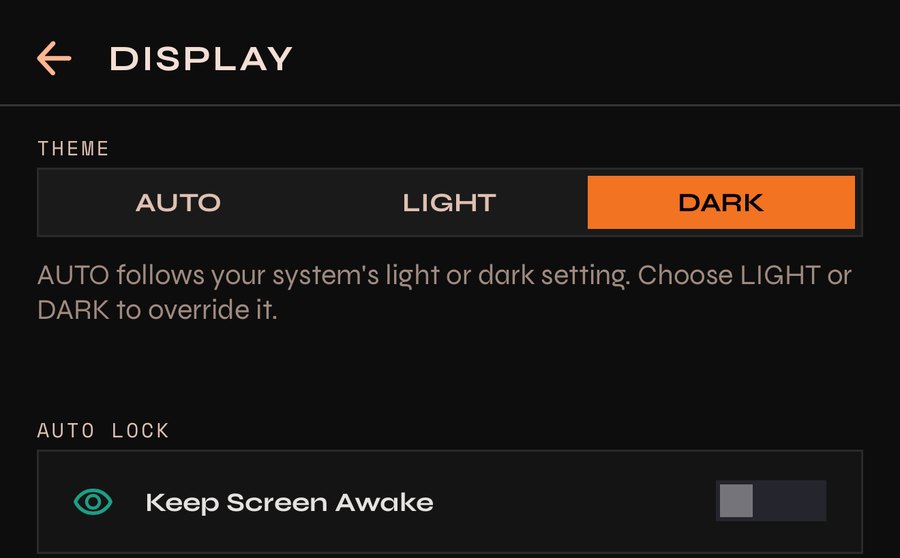
- Theme: AUTO (follows the phone), LIGHT or DARK.
- Keep Screen Awake while DiPLO is open.
Plus: Send Feedback (opens an email to us) and Clear All Recordings (asks first and can’t be undone).
Premium
Recording, transcribing, searching and sharing are free and unlimited. Premium adds:
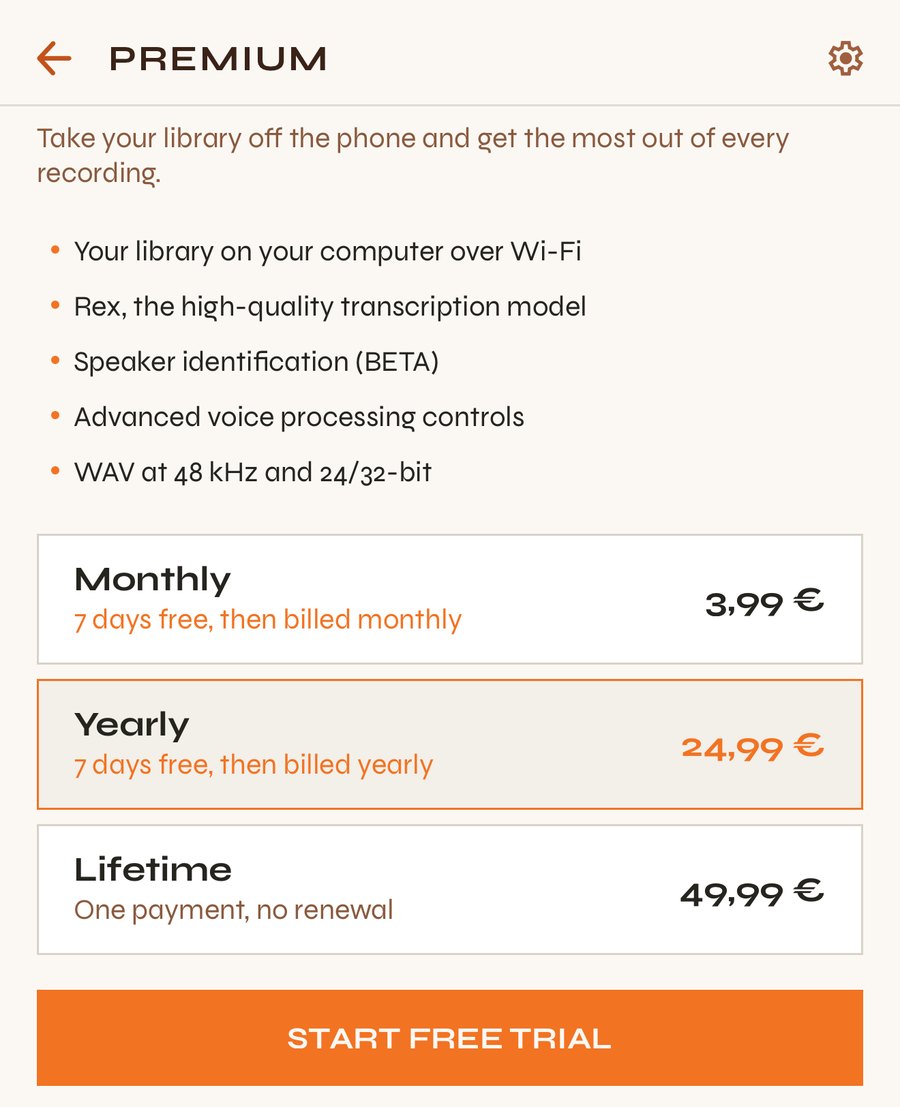
- Your library on your computer over Wi-Fi.
- Rex, the high-quality transcription model.
- Speaker identification.
- Advanced voice processing controls.
- WAV at 48 kHz and 24/32-bit.
Get it from Settings → DiPLO Premium, or by tapping anything with a padlock (PREMIUM FEATURE → SUBSCRIBE). There’s a Monthly, Yearly or Lifetime plan (one payment). If you change phones, use Restore purchases.
Troubleshooting
MICROPHONE BLOCKED. You refused DiPLO the microphone permission. Tap OPEN SETTINGS and allow it in the phone’s settings.
COULD NOT START RECORDING. Usually there’s no free space. Free some up and try again.
The transcript says A.I. ERROR. Usually the model couldn’t be downloaded. Check your connection (Wi-Fi is best) and tap TRANSCRIBE again.
NOT ENOUGH MEMORY. The model needs free memory. Close other apps and try again.
SLOW TRANSCRIPTION. On some older Android phones transcription works but can take longer than the recording itself.
CAN’T IMPORT. The file isn’t audio DiPLO can read, or the phone is out of space.
CAN’T SEND (Wi-Fi). Connect to a Wi-Fi network (it doesn’t work on mobile data). If you change networks, turn the transfer on again to get a new address.
Anything else? Write to us from Settings → Send Feedback or at admin@sauralaudio.com.