If something isn’t working the way you expect, it’s most likely covered here. Each problem leads to its fix and, where needed, to the guide page that explains it in detail. If you can’t find it, write to us (at the end of the page).
My voice is late (or early) against the beat
Every phone and every audio output has its own delay. VRaptor makes up for it, but sometimes it needs a fine adjustment:
- Connect the output you’re going to record with (speaker, wired, USB or Bluetooth headphones).
- Go to Settings → Recording → Sync and tap Calibrate. Follow the instructions: VRaptor plays some clicks and measures the delay.
- If you’d rather do it by hand: if your takes land late, raise the value; if they land early, lower it.
Good to know:
- Each output keeps its own setting. If you calibrate with the speaker and then record with Bluetooth headphones, you need to calibrate with them too.
- Bluetooth adds much more delay than a cable, and the delay varies from one pair of headphones to another. If you can, record with a cable.
- Takes already recorded don’t change. The setting applies to the next ones.
- Also, Auto Beat Lock (Settings → Voice) moves the start of your notes onto the beat’s timing. If your voice sounds too “quantised”, lower its Amount; if it sounds loose, raise it.
More in Settings and Recording well.
I can’t hear myself while I sing
- Without headphones you can’t hear yourself. Your voice coming out of the speaker would go back into the microphone and feed back, so VRaptor only lets you hear the beat. That’s normal.
- With headphones, turn it on in the mixer. Open the studio’s mixer and, on the VOICE strip, tap the headphones button. It’s off by default. If you tap it with no headphones connected, you’ll see Monitoring needs headphones.
- With Bluetooth you’ll hear yourself with a delay. That’s a limitation of Bluetooth. To hear yourself properly while you sing, use wired headphones.
I can hear the beat in the background of my take
This happens when you record without headphones: the mic hears the beat coming out of the speaker. VRaptor removes it after each take with Studio Isolation (Settings → Recording). If you can still hear it:
- Check that Studio Isolation is on.
- Turn the volume down a little when recording. The louder the beat plays through the speaker, the more there is to remove.
- Cymbals and hi-hats are the hardest to remove completely.
- Studio Isolation doesn’t act if you record with headphones (it isn’t needed) or with the beat muted in the mixer.
The real fix is a pair of headphones: with them, the mic only hears your voice.
Note: when Studio Isolation cleans a take, the original recording is deleted. If you turn it off, it only affects the takes you record from then on.
My voice sounds too quiet (or too loud)
While recording, watch the ring around the record button: it fills with the volume of your voice. If it barely moves, get closer to the microphone; if it reaches the end, move back a little. On phones you can’t turn up the microphone’s gain: it depends on the distance.
After recording, VRaptor evens out each take’s volume by itself, so your voice sits at the beat’s level even though every mic records differently. Even so:
- If you clipped while recording (the ring reached the end), the distortion can’t be removed. Record again, a little further away.
- If you recorded very quietly, turning it up also turns up the noise.
- To balance voice and beat, open the mixer and move the VOICE and BEAT faders.
- Beat ducking (Settings → Voice) lowers the beat a little while you sing so you can be understood. You can give it more Depth or turn it off.
VRaptor can’t use the microphone
If you see VRaptor needs the microphone when you record, your phone hasn’t given it permission. Tap Open settings: VRaptor’s page opens in your phone’s settings. There:
- Android: go to Permissions → Microphone and choose allow (while using the app).
- iPhone: turn on Microphone.
Go back to VRaptor and record again. If you tapped Not now, you can do it later from your phone’s settings: on Android, Apps → VRaptor → Permissions; on iPhone, Settings → VRaptor. The exact names vary a little depending on the manufacturer and the system version.
VRaptor only uses the microphone while it’s on screen. When you leave the app it lets go of it, and it doesn’t leave any notification.
A beat won’t download
Three beats come with the app. The others download all at once if you accept the offer the first time you enter the studio, or one by one: each beat downloads by itself the first time you tap it in Pick a beat (about 2 MB) and plays as soon as it arrives. The AI that cleans your takes already comes inside the app, so recording and cleanup never need a connection.
- If you see The beat could not be downloaded, check your connection and tap it again.
- If the circle on the cover keeps spinning, give it a few seconds: on a slow connection it takes a little longer.
- If you’re short of space, free up space on your phone and try again.
If you download every beat at once (the offer when you enter the studio, which comes back the next time you open the app if you tapped Not now): while it’s downloading, keep the app open until it finishes. If you see The download failed, check your connection and tap Try again: what’s already downloaded is kept and it carries on where it left off.
Every beat you already have works offline.
I’m running out of space
At the bottom of the Library you can see how many songs you have and how much free space is left on your phone (for example, “12 Songs · 2.3 GB available”). Recorded takes take up the most space.
- Delete the songs you no longer want: in the Library, swipe the song’s card to one side and confirm.
- Files you export for sharing are kept separately, in a temporary folder, and VRaptor deletes them by itself the next day.
Exporting fails or takes a long time
- “Finishing your takes…”: VRaptor is still cleaning or adjusting a take you’ve just recorded. The export starts by itself as soon as it’s done.
- A video takes longer than audio: every frame has to be drawn. A whole song takes quite a bit longer than a 15- or 30-second clip. Meanwhile, it’s best to keep the app open.
- “Export failed”: the message gives the reason when it knows it (for example, it could not write the file). The most common cause is lack of space: free up space and try again.
- “Video export is not available on this device”: your phone doesn’t let the app create video. You can export the Audio.
- “Audio is breaking up” while it plays: the phone can’t keep up with so many effects. Remove or switch some off in Pro mode.
More on exporting in Exporting.
My video has a watermark
Videos carry a small “made with VRaptor” mark. With Premium you can remove it: in Share → Video, under Watermark, choose Hide. Without Premium, that button has a padlock.
Premium also allows videos up to 60 seconds (without Premium, up to 30) and all the video styles. See Settings → Premium.
Where are my songs stored?
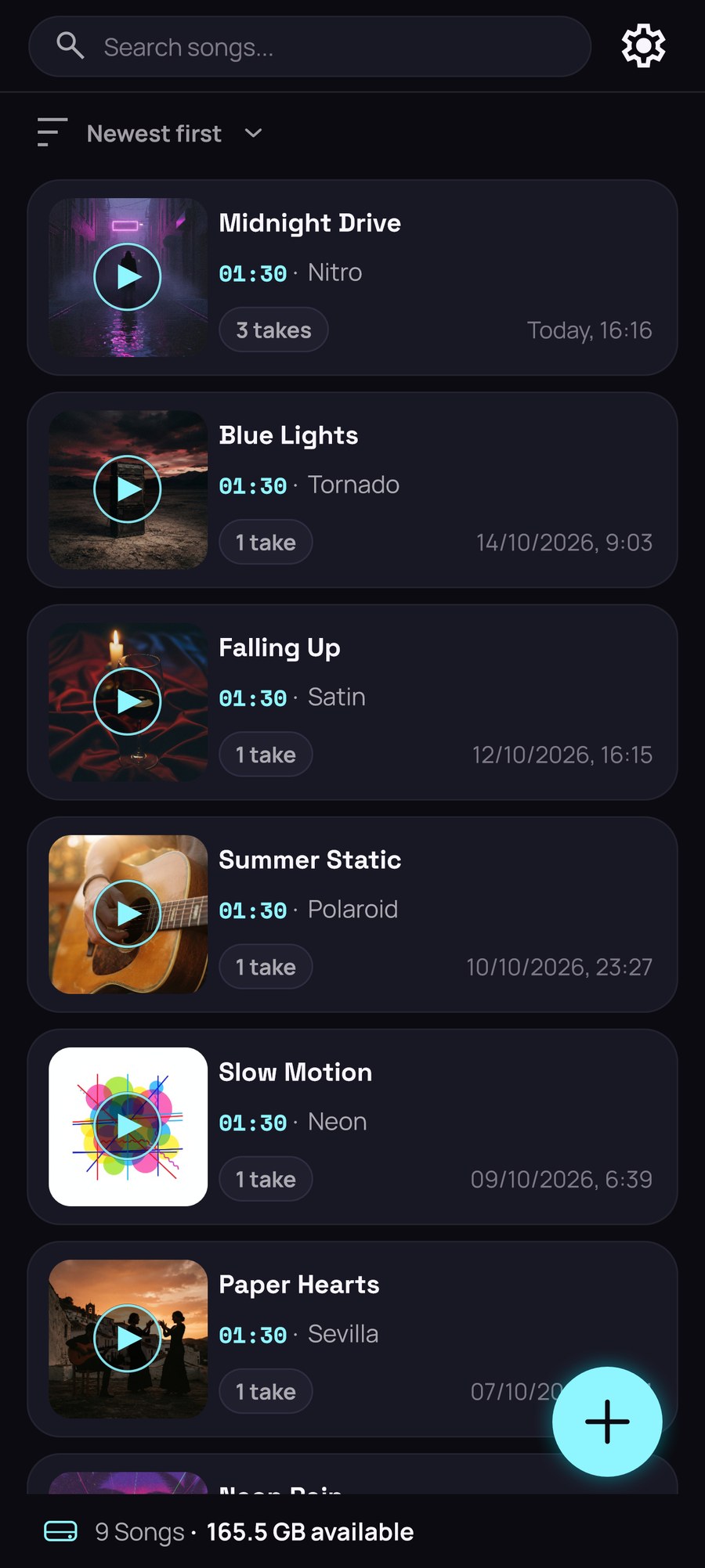
Inside the app itself, on your phone. You’ll find them in the Library (on the home screen, Explore Library or Continue Working). They aren’t in your gallery or in a folder you can open from another app.
- To get a song off your phone, export it (audio or video) and send it, upload it to your cloud or save it wherever you like from the share menu.
- If you uninstall VRaptor, your songs are deleted, and on Android they aren’t included in the phone’s backup. Export anything you want to keep first.
- Your saved styles (Custom presets) also live inside the app.
VRaptor has no accounts and uploads nothing: your voice is processed on your phone and your songs don’t leave it until you share them.
The app is in English (or in Spanish and I want another language)
VRaptor uses your phone’s language. It’s available in Spanish, English, French, German, Italian and Portuguese; with any other language it’s shown in English. If you change your phone’s language, close VRaptor completely and open it again so it picks it up.
Does it work on tablets and foldables?
Yes, on Android. On a phone (or a folded foldable) VRaptor stays upright; on a tablet or an unfolded foldable it turns with the screen. Where there’s room, the studio splits into two panes: your style and the effects on one side, your song and the record button on the other. With a foldable half open on a table, the song sits on top and large playback controls below.
Can I use VRaptor with TalkBack or VoiceOver?
Yes. VRaptor’s controls have a name and a value for your screen reader (TalkBack on Android, VoiceOver on iPhone): Home, the studio in Simple and Pro, the timeline, the automation editor, the Library, Settings and sharing. While you record it stays quiet, so it doesn’t interrupt your take.
Can I do the tour again?
Yes. In Settings → Help you’ll find Take the tour (your first song in Simple) and Pro tour.
Contact
Something not working, or have an idea? Settings → Help → Send feedback opens an email that’s already prepared with the details we need to reproduce the problem. You can also write to us directly at admin@sauralaudio.com.
A real person reads it, so it may take a day, but we answer every bug report. If you tell us what you were doing and send a screenshot, even better.