When your song is ready, VRaptor turns it into a video for social media or an audio file. It all happens on your phone, nothing is uploaded: when it’s done, your phone’s share menu opens and you choose where it goes.
Opening Share
In the studio, tap the Share button (the up arrow above the waveform, next to Undo). The Share panel slides up, with two tabs at the top: Audio and Video.
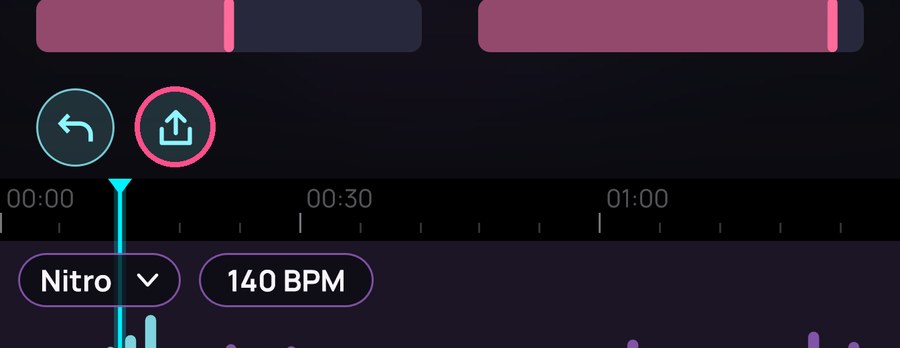
The button is disabled while you’re recording or while the song is empty. If the song was playing, it stops when the panel opens: Share has its own preview.
Video
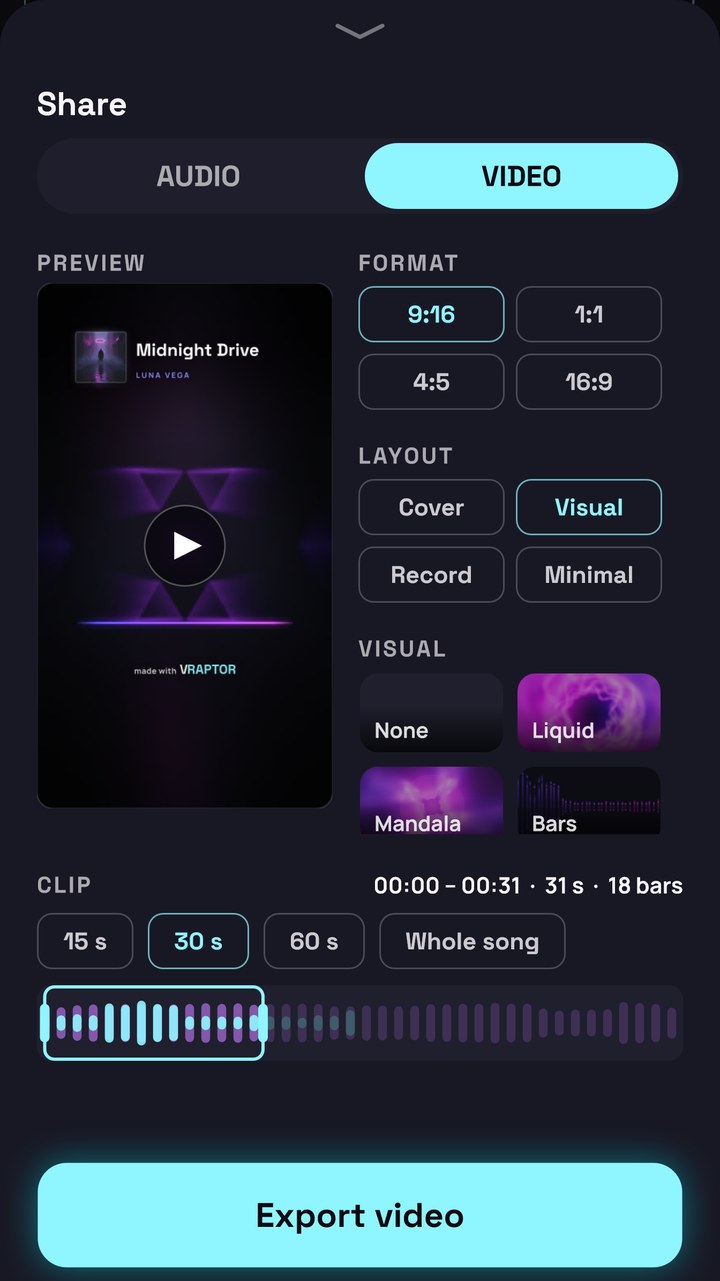
On one side you have the Preview: a live thumbnail of the video. It’s exactly what you’re going to export. Tap it to play the clip and tap it again to stop.
On the other side is a scrolling column of options. Everything you choose is saved with the song (except the watermark).
Format
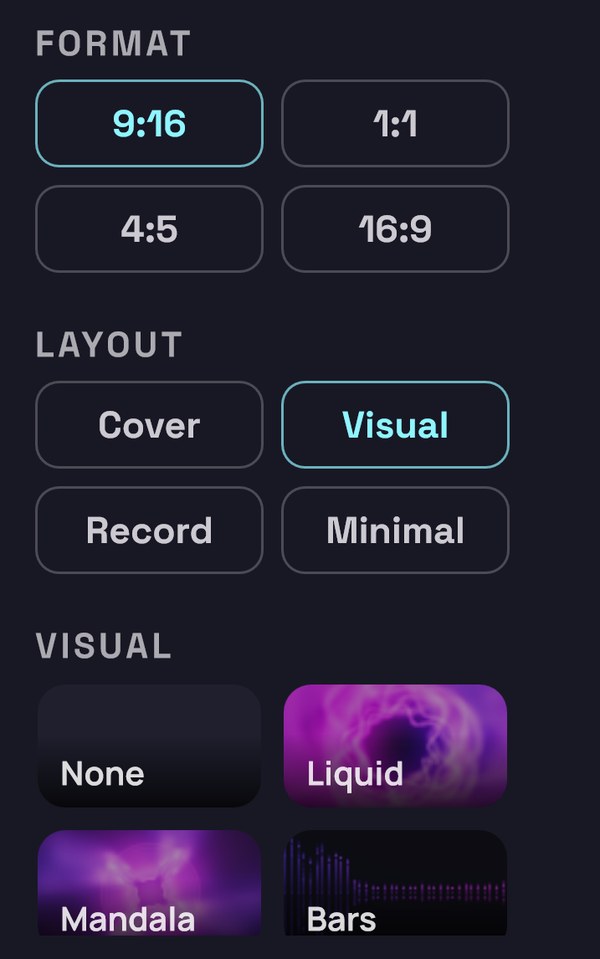
| Format | What it’s for |
|---|---|
| 9:16 | Vertical: TikTok, Reels, Shorts |
| 1:1 | Square |
| 4:5 | Short vertical, for the Instagram feed |
| 16:9 | Horizontal, for YouTube |
In 9:16, the title and anything you need to read stay clear of the buttons and text that TikTok and Reels place over the video.
Layout
| Layout | What you see |
|---|---|
| Cover | The title, the cover art and, below, the visual and the wave |
| Visual | The visual fills the whole video; the cover art sits small in a corner |
| Record | The cover art as a spinning record, with the clip’s bars |
| Minimal | The title and the clip’s bars |
Each layout comes with its own default Wave (Cover and Visual, Line; Record and Minimal, Bars). You can change it afterwards.
The background is always your cover art, blurred and darkened towards the edges, and the video’s colours are taken from it.
Visual
The visual is the animation that moves with the music. Each tile shows how it looks with your cover art’s colours. Choose None or one of these: Liquid, Mandala, Bars, Waterfall, Warp, Halo, Phosphor, Lissajous, Fireworks, Tunnel, Canyon, Trip, Plasma, Aurora and Flow.
Wave
- Line: the sound’s waveform, live.
- Bars: the clip drawn as in Simple (beat and voice), lighting up as it plays.
- None.
Title
Show or Hide the song’s title and artist. The artist appears below the title if you’ve given the song one.
Watermark
The video carries a discreet “made with VRaptor” mark. Show is the default; Hide is part of Premium. Even with Premium, the mark stays until you choose Hide.
The clip
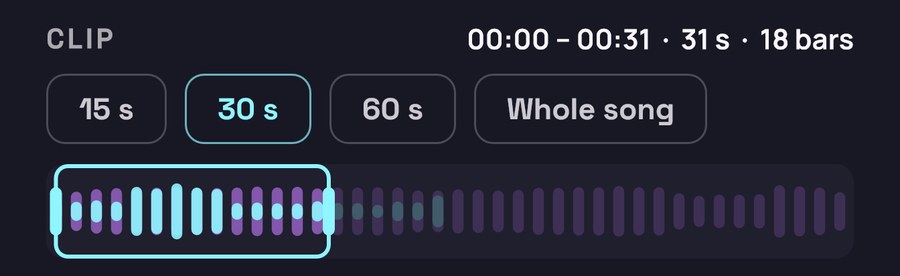
Below is the Clip: the whole song drawn out, with a window over the part that will go into the video. Above it you see its start, its end, how long it lasts and how many bars it covers.
- Tap 15 s, 30 s, 60 s or Whole song to set the length in one go. Only the ones that fit your song appear.
- Drag the window to move it and its edges to lengthen or shorten it. A tap outside the window centres it there.
- The clip lasts at least 5 seconds.
At first, the clip lasts 30 seconds and starts one beat before you sing: VRaptor finds where your voice comes in on the wave, so the video opens on it rather than on seconds of beat alone (on social media, the first second decides whether anyone stays). Once you move it, it stays where you put it.
If the beat has a tempo, the clip lasts whole bars and starts on a beat. VRaptor also blends the end into the start so that, when the video loops on social media, you can’t hear the cut.
Audio
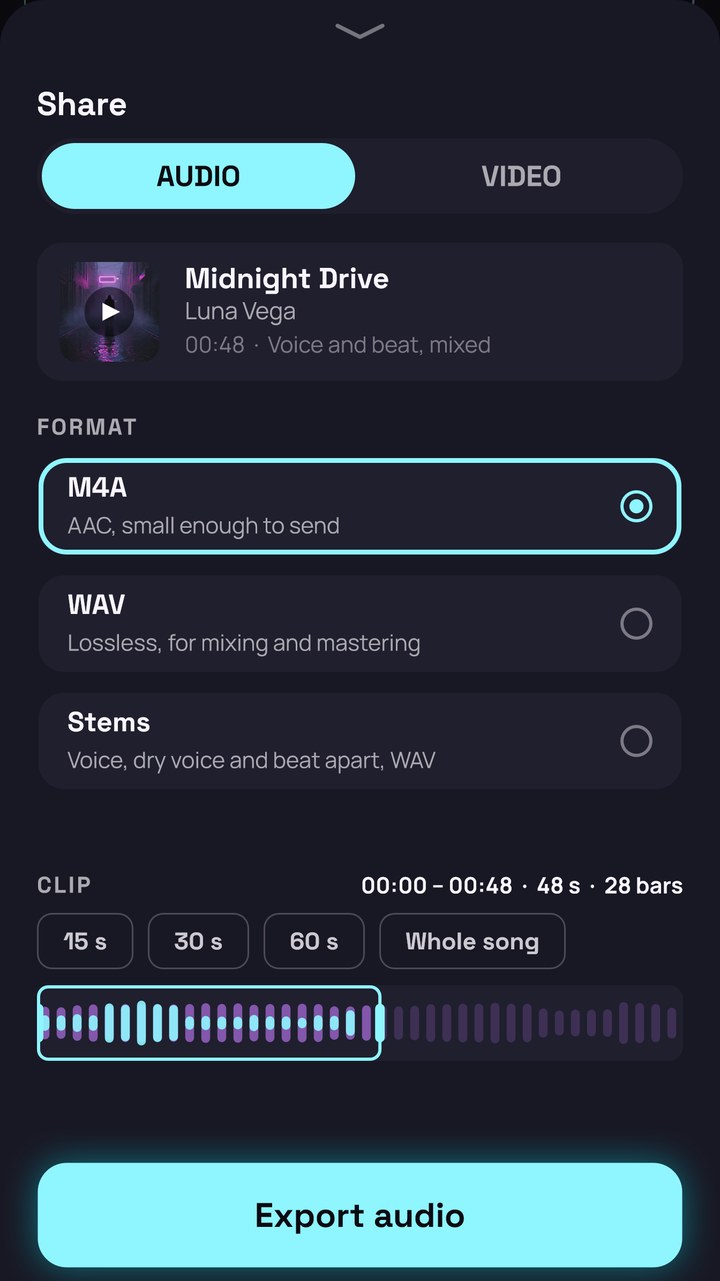
At the top you see your song with its cover art, its length and “Voice and beat, mixed”. Tap the cover art to hear the part you’re going to export.
Choose the format:
| Format | What it is |
|---|---|
| M4A | AAC, light and easy to send. It’s selected by default. |
| WAV | Lossless, for mixing and mastering. Premium. |
| Stems | Voice, dry voice and beat separately, as WAV. Premium. |
Which part is exported
As with video, there’s a Clip with the same lengths and the same window. By default it covers the part with your voice: from one bar before your first take to one bar after the last. If that ends up within a bar of the start or end of the song, the whole song is exported. If you don’t sing through the whole song, this spares you the beat on its own at the start and end.
When it isn’t the whole song, the audio fades in and out very briefly.
Stems
These are three WAV files that start together and line up with each other, ready to take into another mixing program:
- Voice: your voice with its whole style (tuner, effects and curves).
- Dry voice: your voice just cleaned, with no tuner, no effects and no curves.
- Beat.
Stems don’t include beat ducking or the final limiter: added together, they sound like the mix before those two steps, and whoever mixes them decides.
Exporting
Tap Export video or Export audio.
- If any take is still being processed, you’ll see Finishing your takes… and the export starts by itself when it’s done.
- Then you’ll see Rendering video… or Rendering audio… with a progress bar. Cancel stops it without leaving half-finished files.
- When it’s finished you’ll see Ready: with the file name, and your phone’s share menu opens: send it to an app, save it to your files or upload it to social media.
- To keep the video on your phone and post it later from TikTok or Instagram: on Android, back from the share menu, tap Save to gallery (it goes to Movies/VRaptor; Android 10 or later); on iPhone, choose Save Video in the share menu. If you change anything about the video, the button goes: that video is no longer the one you’ve chosen.
The file is named after your song. Stems are shared all three together.
| Export | File |
|---|---|
| Video | MP4, 30 frames per second; 9:16 at 1080 × 1920 |
| M4A | AAC at 256 kbps, 44.1 kHz |
| WAV | 16-bit, 44.1 kHz |
| Stems | Three 24-bit WAV files, 44.1 kHz |
If video can’t be created on your phone, the app tells you: Video export is not available on this device.
Free and Premium
Making songs and sharing them is free. When you export, Premium adds:
- Videos up to 60 seconds or the whole song (free: up to 30 s). The picture quality is the same.
- Videos without the watermark.
- All the visuals (free: the first five, Liquid, Mandala, Bars, Waterfall and Warp).
- WAV and stems.
- All the voice styles. You can try any style on your takes; Premium is only asked for when the part you export has a take with a Premium style. Takes outside the clip don’t count.
Premium features carry a padlock. You can pick them and see them in the preview; when you tap Export, VRaptor tells you which parts are Premium (This song uses Premium:) so you can choose: see Premium or swap them for free ones. Nothing you’ve done is lost.
Your opinion
After you’ve exported a few songs, VRaptor may ask, as the share menu closes, whether you’d like to rate it in the store. It only happens now and then, and never in the middle of a recording. If you’d like to do it sooner, or tell us something, go to Settings > Help, where you’ll find Rate VRaptor and Send feedback.
Next
→ 12. Settings: voice, recording, display and help.